

AI Integration Quick Reference
AI Integration Quick Reference
| Field | Value |
|---|---|
| Package | com.cometchat:chat-uikit-android |
| Components | CometChatConversations, CometChatMessageHeader, CometChatMessageList, CometChatMessageComposer |
| Layout | Sequential navigation — conversation list → full-screen message view |
| Prerequisite | Complete Integration Steps 1–4 first |
| Pattern | WhatsApp, Slack, Telegram |
What You’re Building
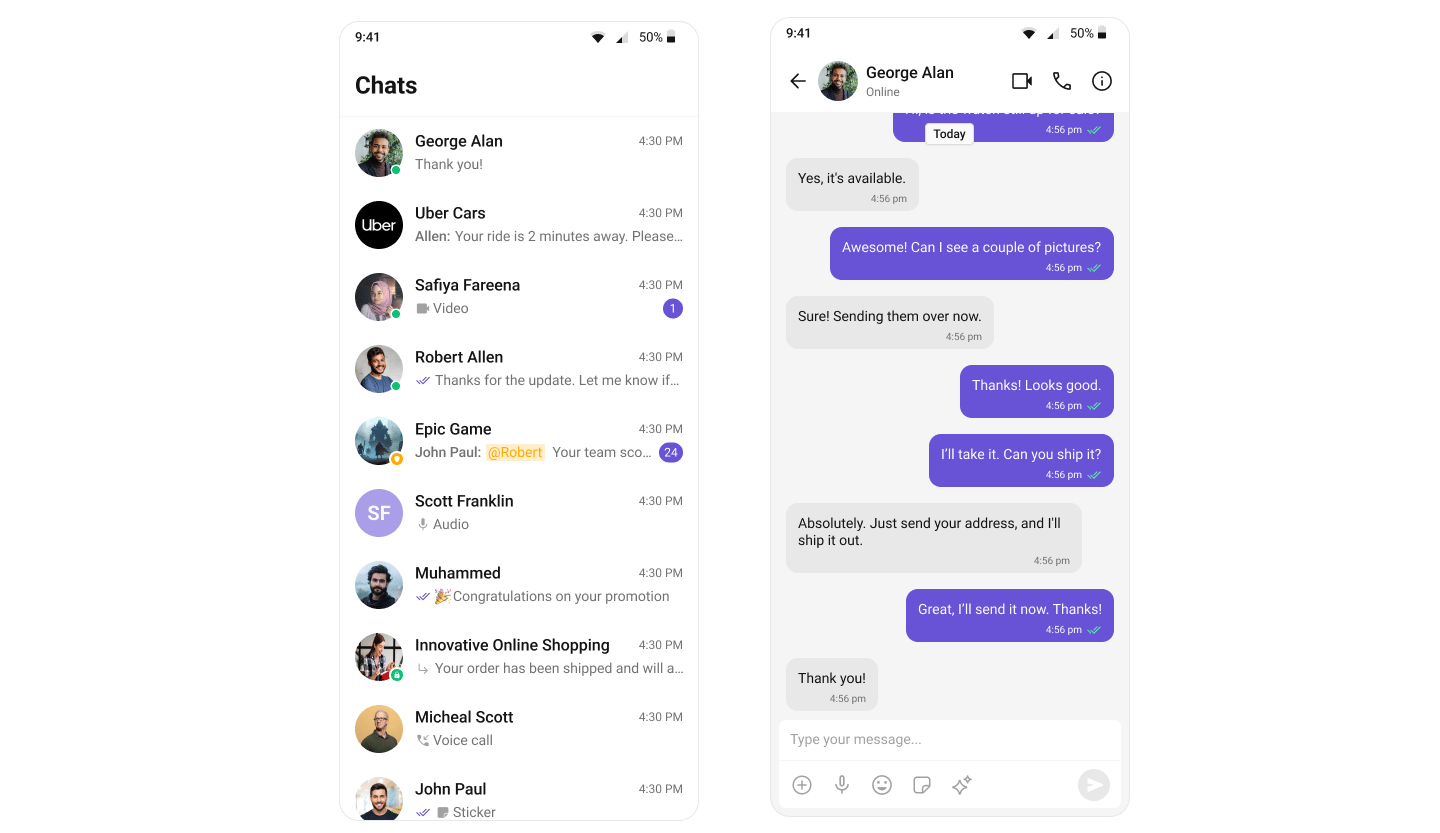
- Conversation list — shows all active conversations (users and groups)
- Message header — displays user/group name, avatar, and status
- Message list + composer — chat history with real-time updates and text input
ConversationActivity displays the list, user taps a conversation, MessageActivity launches with the selected user/group data via Intent extras.
Step 1: Set Up Conversation Activity
Create a new Activity calledConversationActivity to display the list of conversations.
Layout
Define the layout using theCometChatConversations component in activity_conversations.xml:
activity_conversations.xml
<androidx.constraintlayout.widget.ConstraintLayout xmlns:android="http://schemas.android.com/apk/res/android"
    xmlns:app="http://schemas.android.com/apk/res-auto"
    xmlns:tools="http://schemas.android.com/tools"
    android:id="@+id/main"
    android:layout_width="match_parent"
    android:layout_height="match_parent"
    tools:context=".ConversationActivity">

    <com.cometchat.chatuikit.conversations.CometChatConversations
        android:id="@+id/conversation_view"
        android:layout_width="0dp"
        android:layout_height="0dp"
        app:layout_constraintTop_toTopOf="parent"
        app:layout_constraintBottom_toBottomOf="parent"
        app:layout_constraintStart_toStartOf="parent"
        app:layout_constraintEnd_toEndOf="parent" />

</androidx.constraintlayout.widget.ConstraintLayout>
Activity
Initialize theCometChatConversations component and handle conversation item clicks to navigate to the message screen:
- Kotlin
- Java
ConversationActivity.kt
import android.content.Intent
import android.os.Bundle

import androidx.activity.enableEdgeToEdge
import androidx.appcompat.app.AppCompatActivity

import com.cometchat.chat.constants.CometChatConstants
import com.cometchat.chat.models.Conversation
import com.cometchat.chat.models.Group
import com.cometchat.chat.models.User
import com.cometchat.chatuikit.conversations.CometChatConversations

class ConversationActivity : AppCompatActivity() {

    private lateinit var conversationsView: CometChatConversations

    override fun onCreate(savedInstanceState: Bundle?) {
        super.onCreate(savedInstanceState)
        enableEdgeToEdge()
        setContentView(R.layout.activity_conversation)

        initView()
        setListeners()
    }

    private fun initView() {
        conversationsView = findViewById(R.id.conversation_view)
    }

    private fun setListeners() {
        conversationsView.setOnItemClick { _, _, conversation ->
            startMessageActivity(conversation)
        }
    }

    private fun startMessageActivity(conversation: Conversation) {
        val intent = Intent(this, MessageActivity::class.java).apply {
            when (conversation.conversationType) {
                CometChatConstants.CONVERSATION_TYPE_GROUP -> {
                    val group = conversation.conversationWith as Group
                    putExtra("guid", group.guid)
                }
                else -> {
                    val user = conversation.conversationWith as User
                    putExtra("uid", user.uid)
                }
            }
        }
        startActivity(intent)
    }
}
ConversationActivity.java
import android.content.Intent;
import android.os.Bundle;

import androidx.activity.EdgeToEdge;
import androidx.appcompat.app.AppCompatActivity;

import com.cometchat.chat.constants.CometChatConstants;
import com.cometchat.chat.models.Conversation;
import com.cometchat.chat.models.Group;
import com.cometchat.chat.models.User;
import com.cometchat.chatuikit.conversations.CometChatConversations;

public class ConversationActivity extends AppCompatActivity {

    private CometChatConversations conversationsView;

    @Override
    protected void onCreate(Bundle savedInstanceState) {
        super.onCreate(savedInstanceState);
        EdgeToEdge.enable(this);
        setContentView(R.layout.activity_conversation);

        initView();
        setListeners();
    }

    private void initView() {
        conversationsView = findViewById(R.id.conversation_view);
    }

    private void setListeners() {
        conversationsView.setOnItemClick((view, position, conversation) -> {
            startMessageActivity(conversation);
        });
    }

    private void startMessageActivity(Conversation conversation) {
        Intent intent = new Intent(this, MessageActivity.class);

        if (CometChatConstants.CONVERSATION_TYPE_GROUP.equals(conversation.getConversationType())) {
            Group group = (Group) conversation.getConversationWith();
            intent.putExtra("guid", group.getGuid());
        } else {
            User user = (User) conversation.getConversationWith();
            intent.putExtra("uid", user.getUid());
        }

        startActivity(intent);
    }
}
You must use an activity that supports the lifecycle API, such as:
AppCompatActivityComponentActivityFragmentActivity
Step 2: Set Up Message Activity
Create a new Activity -MessageActivity to display the chat interface.
Layout
Define the layout withCometChatMessageHeader, CometChatMessageList, and CometChatMessageComposer in activity_message.xml:
activity_message.xml
<androidx.constraintlayout.widget.ConstraintLayout
    xmlns:android="http://schemas.android.com/apk/res/android"
    xmlns:app="http://schemas.android.com/apk/res-auto"
    xmlns:tools="http://schemas.android.com/tools"
    android:id="@+id/main"
    android:layout_width="match_parent"
    android:layout_height="match_parent"
    tools:context=".MessageActivity">

    <!-- Message Header -->
    <com.cometchat.chatuikit.messageheader.CometChatMessageHeader
        android:id="@+id/message_header"
        android:layout_width="match_parent"
        android:layout_height="wrap_content"
        app:layout_constraintTop_toTopOf="parent"
        app:layout_constraintStart_toStartOf="parent"
        app:layout_constraintEnd_toEndOf="parent" />

    <!-- Message List -->
    <com.cometchat.chatuikit.messagelist.CometChatMessageList
        android:id="@+id/message_list"
        android:layout_width="0dp"
        android:layout_height="0dp"
        app:layout_constraintTop_toBottomOf="@id/message_header"
        app:layout_constraintBottom_toTopOf="@id/message_composer"
        app:layout_constraintStart_toStartOf="parent"
        app:layout_constraintEnd_toEndOf="parent" />

    <!-- Message Composer -->
    <com.cometchat.chatuikit.messagecomposer.CometChatMessageComposer
        android:id="@+id/message_composer"
        android:layout_width="match_parent"
        android:layout_height="wrap_content"
        app:layout_constraintBottom_toBottomOf="parent"
        app:layout_constraintStart_toStartOf="parent"
        app:layout_constraintEnd_toEndOf="parent" />

</androidx.constraintlayout.widget.ConstraintLayout>
Activity
Retrieve the user/group ID from the Intent extras and configure the message components:- Kotlin
- Java
MessageActivity.kt
import android.os.Bundle
import android.util.Log
import android.widget.Toast
import androidx.activity.enableEdgeToEdge
import androidx.appcompat.app.AppCompatActivity
import com.cometchat.chat.core.CometChat
import com.cometchat.chat.exceptions.CometChatException
import com.cometchat.chat.models.Group
import com.cometchat.chat.models.User
import com.cometchat.chatuikit.messagecomposer.CometChatMessageComposer
import com.cometchat.chatuikit.messageheader.CometChatMessageHeader
import com.cometchat.chatuikit.messagelist.CometChatMessageList

class MessageActivity : AppCompatActivity() {
    private lateinit var messageHeader: CometChatMessageHeader
    private lateinit var messageList: CometChatMessageList
    private lateinit var messageComposer: CometChatMessageComposer

    private var uid: String? = null
    private var guid: String? = null

    private val TAG = "MessageActivity"

    override fun onCreate(savedInstanceState: Bundle?) {
        super.onCreate(savedInstanceState)
        enableEdgeToEdge()
        setContentView(R.layout.activity_message)

        initializeViews()
        setupChat()
        setupHeaderBackButton()
    }

    private fun initializeViews() {
        messageHeader = findViewById(R.id.message_header)
        messageList = findViewById(R.id.message_list)
        messageComposer = findViewById(R.id.message_composer)
    }

    private fun setupChat() {
        uid = intent.getStringExtra("uid")
        guid = intent.getStringExtra("guid")

        when {
            uid != null -> setupUserChat(uid!!)
            guid != null -> setupGroupChat(guid!!)
            else -> {
                Log.e(TAG, "No user ID or group ID provided")
                showError("Missing user ID or group ID")
                finish()
            }
        }
    }

    private fun setupUserChat(userId: String) {
        CometChat.getUser(userId, object : CometChat.CallbackListener<User>() {
            override fun onSuccess(user: User) {
                Log.d(TAG, "Successfully loaded user: ${user.uid}")
                messageHeader.setUser(user)
                messageList.setUser(user)
                messageComposer.setUser(user)
            }

            override fun onError(e: CometChatException?) {
                Log.e(TAG, "Error loading user: ${e?.message}")
                showError("Could not find user: ${e?.message}")
                finish()
            }
        })
    }

    private fun setupGroupChat(groupId: String) {
        CometChat.getGroup(groupId, object : CometChat.CallbackListener<Group>() {
            override fun onSuccess(group: Group) {
                Log.d(TAG, "Successfully loaded group: ${group.guid}")
                messageHeader.setGroup(group)
                messageList.setGroup(group)
                messageComposer.setGroup(group)
            }

            override fun onError(e: CometChatException?) {
                Log.e(TAG, "Error loading group: ${e?.message}")
                showError("Could not find group: ${e?.message}")
                finish()
            }
        })
    }

    private fun setupHeaderBackButton() {
        messageHeader.setOnBackButtonPressed {
            finish()
        }
    }

    private fun showError(message: String) {
        Toast.makeText(this, message, Toast.LENGTH_SHORT).show()
    }
}
MessageActivity.java
import android.os.Bundle;
import android.util.Log;
import android.widget.Toast;

import androidx.appcompat.app.AppCompatActivity;

import com.cometchat.chat.core.CometChat;
import com.cometchat.chat.exceptions.CometChatException;
import com.cometchat.chat.models.Group;
import com.cometchat.chat.models.User;
import com.cometchat.chatuikit.messagecomposer.CometChatMessageComposer;
import com.cometchat.chatuikit.messageheader.CometChatMessageHeader;
import com.cometchat.chatuikit.messagelist.CometChatMessageList;

public class MessageActivity extends AppCompatActivity {

    private static final String TAG = "MessageActivity";

    private CometChatMessageHeader messageHeader;
    private CometChatMessageList messageList;
    private CometChatMessageComposer messageComposer;

    private String uid;
    private String guid;

    @Override
    protected void onCreate(Bundle savedInstanceState) {
        super.onCreate(savedInstanceState);
        getWindow().setDecorFitsSystemWindows(false); // enableEdgeToEdge()
        setContentView(R.layout.activity_message);

        initializeViews();
        setupChat();
        setupHeaderBackButton();
    }

    private void initializeViews() {
        messageHeader = findViewById(R.id.message_header);
        messageList = findViewById(R.id.message_list);
        messageComposer = findViewById(R.id.message_composer);
    }

    private void setupChat() {
        uid = getIntent().getStringExtra("uid");
        guid = getIntent().getStringExtra("guid");

        if (uid != null) {
            setupUserChat(uid);
        } else if (guid != null) {
            setupGroupChat(guid);
        } else {
            Log.e(TAG, "No user ID or group ID provided");
            showError("Missing user ID or group ID");
            finish();
        }
    }

    private void setupUserChat(String userId) {
        CometChat.getUser(userId, new CometChat.CallbackListener<User>() {
            @Override
            public void onSuccess(User user) {
                Log.d(TAG, "Successfully loaded user: " + user.getUid());
                messageHeader.setUser(user);
                messageList.setUser(user);
                messageComposer.setUser(user);
            }

            @Override
            public void onError(CometChatException e) {
                Log.e(TAG, "Error loading user: " + (e != null ? e.getMessage() : "Unknown error"));
                showError("Could not find user: " + (e != null ? e.getMessage() : ""));
                finish();
            }
        });
    }

    private void setupGroupChat(String groupId) {
        CometChat.getGroup(groupId, new CometChat.CallbackListener<Group>() {
            @Override
            public void onSuccess(Group group) {
                Log.d(TAG, "Successfully loaded group: " + group.getGuid());
                messageHeader.setGroup(group);
                messageList.setGroup(group);
                messageComposer.setGroup(group);
            }

            @Override
            public void onError(CometChatException e) {
                Log.e(TAG, "Error loading group: " + (e != null ? e.getMessage() : "Unknown error"));
                showError("Could not find group: " + (e != null ? e.getMessage() : ""));
                finish();
            }
        });
    }

    private void setupHeaderBackButton() {
        messageHeader.setOnBackButtonPressed(() -> finish());
    }

    private void showError(String message) {
        Toast.makeText(this, message, Toast.LENGTH_SHORT).show();
    }
}
Step 3: Update MainActivity
Update yourMainActivity to launch ConversationActivity after successful login:
- Kotlin
- Java
MainActivity.kt
import android.content.Intent
import android.os.Bundle
import android.util.Log
import androidx.activity.ComponentActivity
import androidx.activity.enableEdgeToEdge
import com.cometchat.chat.core.CometChat
import com.cometchat.chat.exceptions.CometChatException
import com.cometchat.chat.models.User
import com.cometchat.chatuikit.shared.cometchatuikit.CometChatUIKit
import com.cometchat.chatuikit.shared.cometchatuikit.UIKitSettings

class MainActivity : ComponentActivity() {

    private val TAG = "MainActivity"

    private val appID = "APP_ID" // Replace with your App ID
    private val region = "REGION" // Replace with your App Region
    private val authKey = "AUTH_KEY" // Replace with your Auth Key or leave blank if you are authenticating using Auth Token

    private val uiKitSettings = UIKitSettings.UIKitSettingsBuilder()
        .setRegion(region)
        .setAppId(appID)
        .setAuthKey(authKey)
        .subscribePresenceForAllUsers()
        .build()

    override fun onCreate(savedInstanceState: Bundle?) {
        super.onCreate(savedInstanceState)
        enableEdgeToEdge()

        CometChatUIKit.init(this, uiKitSettings, object : CometChat.CallbackListener<String?>() {
            override fun onSuccess(successString: String?) {

                Log.d(TAG, "Initialization completed successfully")

                loginUser()
            }

            override fun onError(e: CometChatException?) {}
        })
    }

    private fun loginUser() {
        CometChatUIKit.login("cometchat-uid-1", object : CometChat.CallbackListener<User>() {
            override fun onSuccess(user: User) {

                // Launch Conversation List + Message View (Split-Screen Style)
                startActivity(Intent(this@MainActivity, ConversationActivity::class.java))
            }

            override fun onError(e: CometChatException) {
                // Handle login failure (e.g. show error message or retry)
                Log.e("Login", "Login failed: ${e.message}")
            }
        })
    }
}
MainActivity.java
import android.content.Intent;
import android.os.Bundle;
import android.util.Log;
import androidx.activity.ComponentActivity;
import com.cometchat.chat.core.CometChat;
import com.cometchat.chat.exceptions.CometChatException;
import com.cometchat.chat.models.User;
import com.cometchat.chatuikit.shared.cometchatuikit.CometChatUIKit;
import com.cometchat.chatuikit.shared.cometchatuikit.UIKitSettings;

public class MainActivity extends ComponentActivity {

    private static final String TAG = "MainActivity";

    private final String appID = "APP_ID"; // Replace with your App ID
    private final String region = "REGION"; // Replace with your App Region
    private final String authKey = "AUTH_KEY"; // Replace with your Auth Key

    @Override
    protected void onCreate(Bundle savedInstanceState) {
        super.onCreate(savedInstanceState);
        getWindow().setDecorFitsSystemWindows(false); // Equivalent to enableEdgeToEdge()

        UIKitSettings uiKitSettings = new UIKitSettings.UIKitSettingsBuilder()
                .setRegion(region)
                .setAppId(appID)
                .setAuthKey(authKey)
                .subscribePresenceForAllUsers()
                .build();

        CometChatUIKit.init(this, uiKitSettings, new CometChat.CallbackListener<String>() {
            @Override
            public void onSuccess(String success) {
                Log.d(TAG, "Initialization completed successfully");
                loginUser();
            }

            @Override
            public void onError(CometChatException e) {
                Log.e(TAG, "Initialization failed: " + (e != null ? e.getMessage() : "Unknown error"));
            }
        });
    }

    private void loginUser() {
        CometChatUIKit.login("cometchat-uid-1", new CometChat.CallbackListener<User>() {
            @Override
            public void onSuccess(User user) {
                Log.d(TAG, "Login successful for user: " + user.getUid());

                // Launch Conversation List + Message View
                startActivity(new Intent(MainActivity.this, ConversationActivity.class));

            }

            @Override
            public void onError(CometChatException e) {
                Log.e("Login", "Login failed: " + (e != null ? e.getMessage() : "Unknown error"));
            }
        });
    }
}
Running the Application
Once you’ve completed the setup, build and run your Android application:Required PermissionsEnsure you’ve added the necessary permissions in your
AndroidManifest.xml:<uses-permission android:name="android.permission.INTERNET" />
<uses-permission android:name="android.permission.ACCESS_NETWORK_STATE" />
Next Steps
Components Overview
Explore all available UI Kit components and their customization options
Theming
Customize colors, fonts, and styles to match your brand
Integration
Back to the main setup guide
Feature Guides
Add capabilities like threaded messages, blocking, and group management