

CometChatMessageList renders a scrollable list of messages for a conversation with real-time updates for new messages, edits, deletions, reactions, and threaded replies.
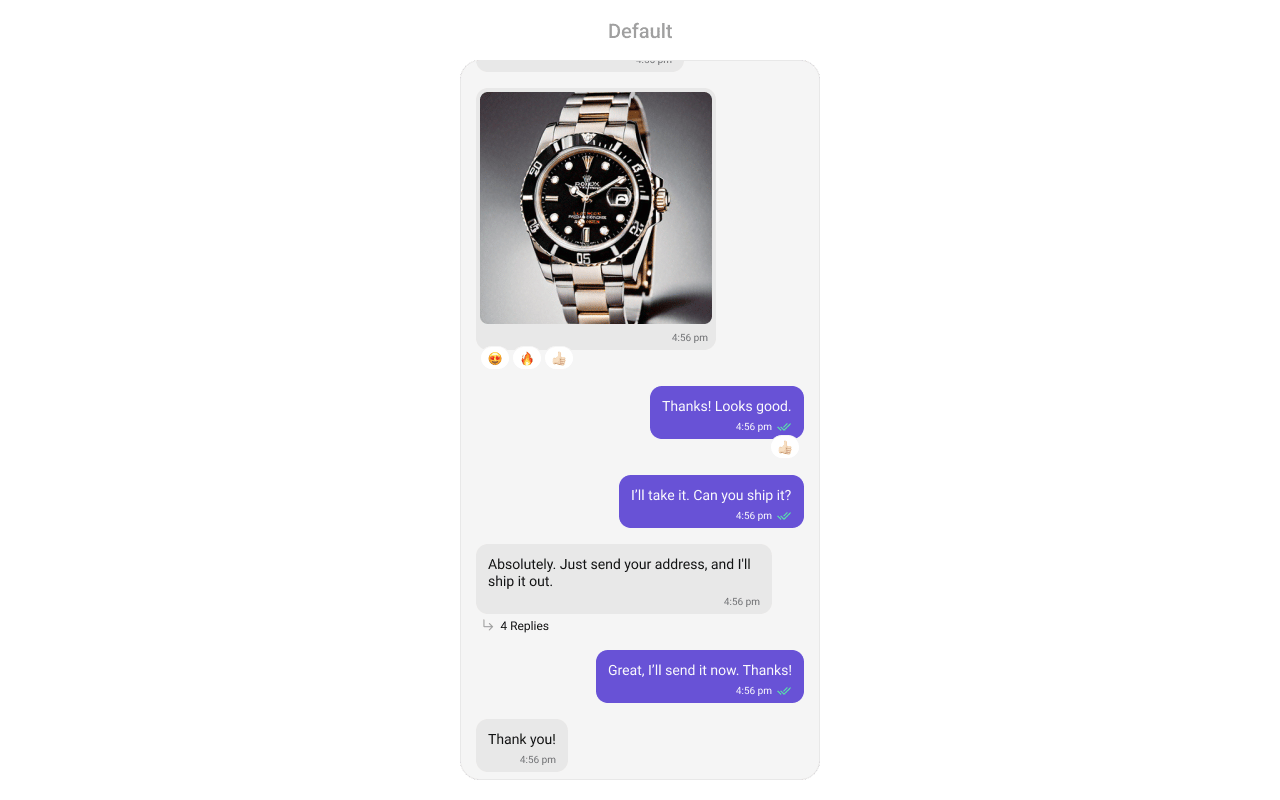
Where It Fits
CometChatMessageList is a message display component. It requires either a User or Group object to fetch and render messages. Wire it with CometChatMessageHeader and CometChatMessageComposer to build a complete messaging layout.
- Kotlin (XML Views)
- Jetpack Compose
activity_chat.xml
Quick Start
- Kotlin (XML Views)
- Jetpack Compose
Add to your layout XML:Set a
User or Group — this is required:CometChatUIKit.init(), a user logged in, and the UI Kit dependency added.
Filtering
Pass aMessagesRequest.MessagesRequestBuilder to control what loads:
- Kotlin (XML Views)
- Jetpack Compose
Filter Recipes
Actions and Events
Callback Methods
onThreadRepliesClick
Fires when a user taps a threaded message bubble.
- Kotlin (XML Views)
- Jetpack Compose
onError
Fires on internal errors (network failure, auth issue, SDK exception).
- Kotlin (XML Views)
- Jetpack Compose
onLoad
Fires when the list is successfully fetched and loaded.
- Kotlin (XML Views)
- Jetpack Compose
onEmpty
Fires when the list is empty after loading.
- Kotlin (XML Views)
- Jetpack Compose
SDK Events (Real-Time, Automatic)
The component listens to SDK message events internally. No manual setup needed.Automatic: new messages, edits, deletions, and reactions update the list in real time.
Functionality
Custom View Slots
Header View
Custom view displayed at the top of the message list.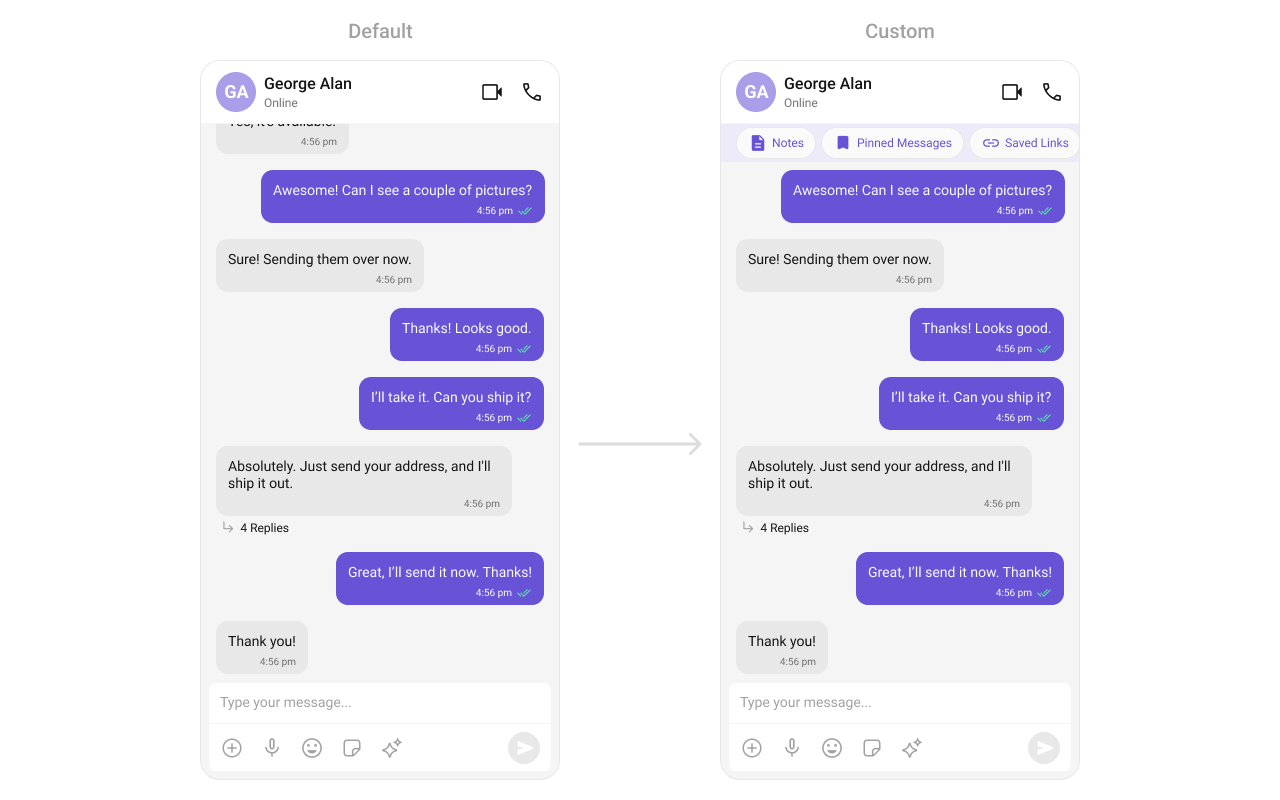
- Kotlin (XML Views)
- Jetpack Compose
Footer View
Custom view displayed at the bottom of the message list.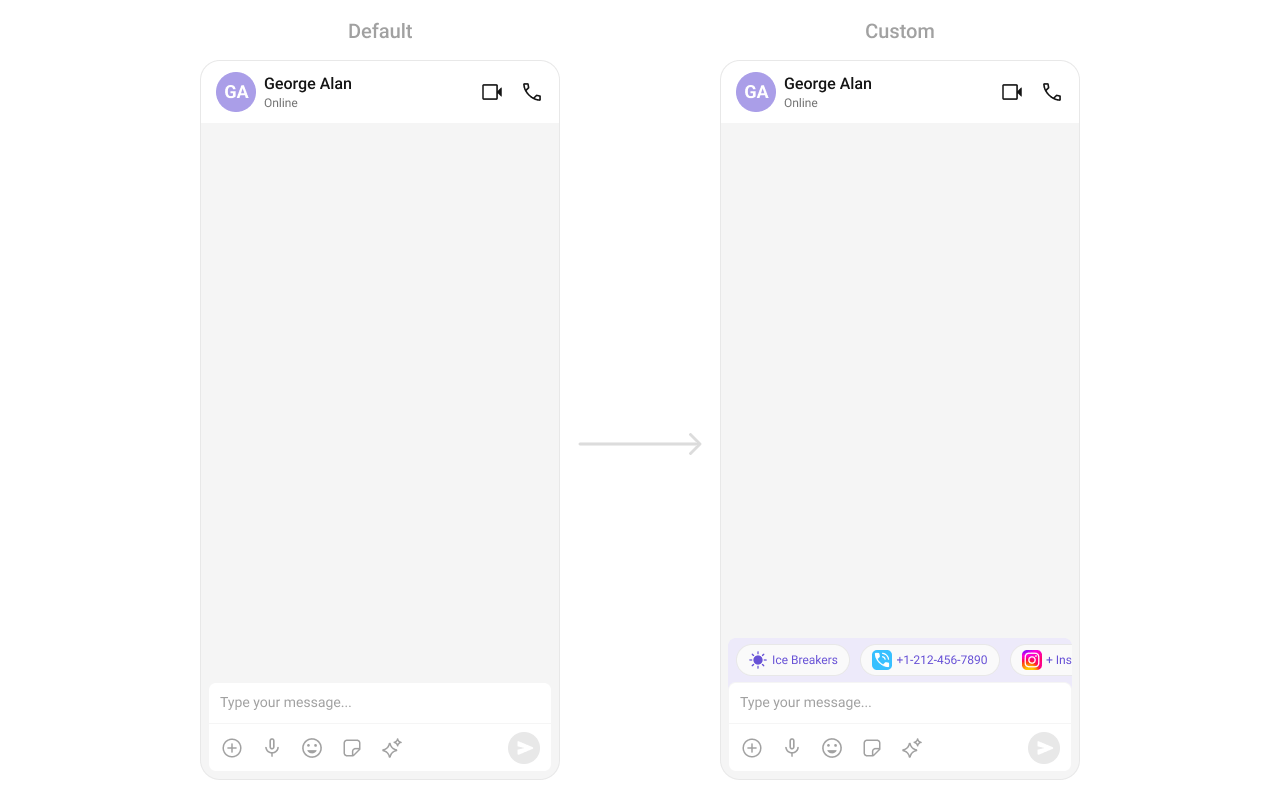
- Kotlin (XML Views)
- Jetpack Compose
State Views
- Kotlin (XML Views)
- Jetpack Compose
Text Formatters (Mentions)
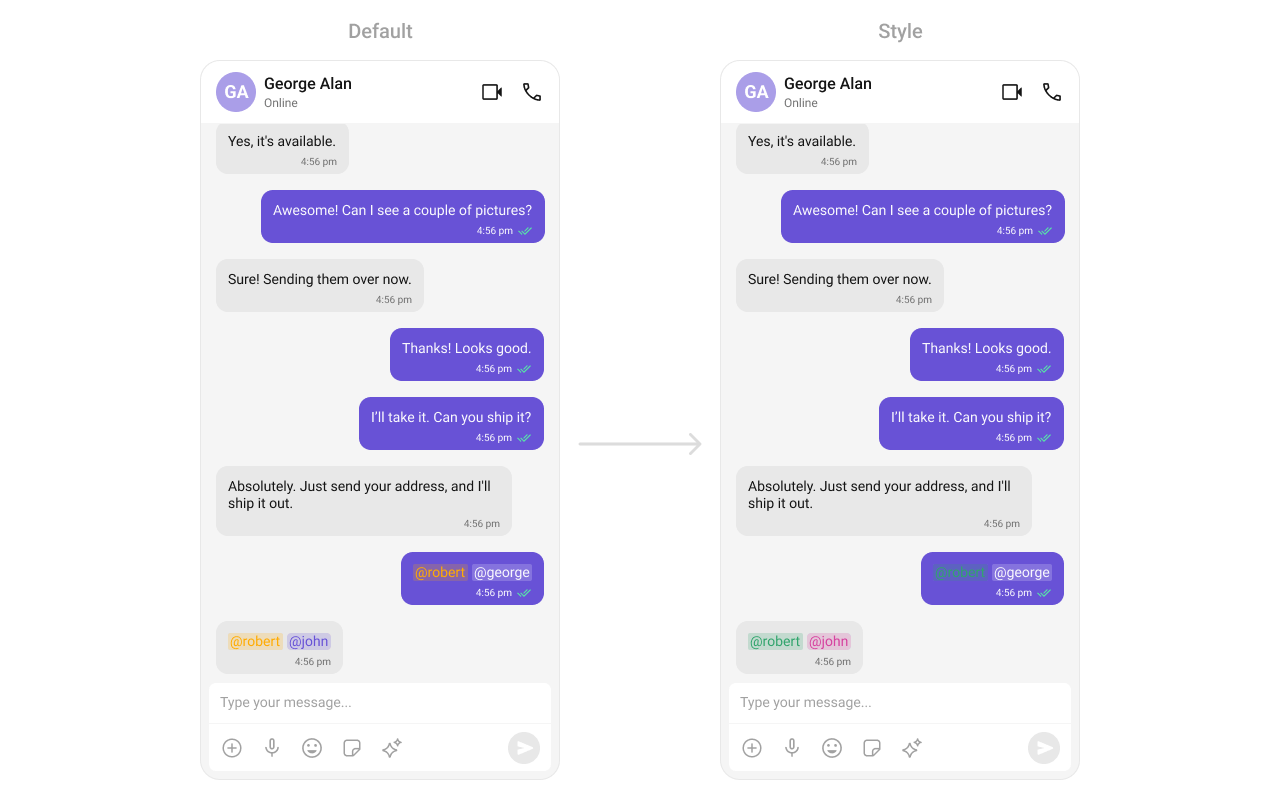
- Kotlin (XML Views)
- Jetpack Compose
Bubble Factory
CometChatMessageList uses a factory-based pattern to render message content. Each message type (text, image, video, etc.) has a corresponding BubbleFactory that creates and binds the bubble view. You can replace existing factories or register new ones for custom message types.
How It Works
When a message is displayed, the list resolves a factory key from the message’scategory and type (e.g., message_text, custom_location). If a matching BubbleFactory is registered, it handles view creation and binding. Otherwise, the built-in InternalContentRenderer handles default rendering.
A BubbleFactory has two lifecycle phases:
create*View(context)— called once when the ViewHolder is created. The message object is not available at this point.bind*View(view, message, alignment, ...)— called every time a message is displayed. This is where you populate the view with message data.
Replacing an Existing Bubble Factory
Override how a built-in message type renders by registering a factory with the same category and type:- Kotlin (XML Views)
- Jetpack Compose
Adding a New Bubble Factory for Custom Messages
Register a factory for a custom message type that the SDK doesn’t handle by default:- Kotlin (XML Views)
- Jetpack Compose
Replacing the Entire Bubble
OverridegetBubbleView to replace the entire message bubble (including all slots like header, footer, avatar) instead of just the content area:
- Kotlin (XML Views)
- Jetpack Compose
Bubble Slot Reference
EachBubbleFactory can override individual slots within the bubble:
- Kotlin (XML Views)
- Jetpack Compose
Bubble Slot View Providers
WhileBubbleFactory customizes rendering per message type, slot view providers let you override a specific slot across all message types. This is useful when you want consistent customization (e.g., always show a custom avatar or always add a custom footer) regardless of the message type.
Slot view providers take priority over
BubbleFactory slot methods. If both are set, the provider wins.- Kotlin (XML Views)
- Jetpack Compose
Use Available provider setters:
BubbleViewProvider — an interface with createView() (called once per ViewHolder) and bindView() (called each time a message binds):Message Options
Message options are the contextual actions shown when a user long-presses a message bubble (e.g., Reply, Copy, Edit, Delete). You can control their visibility, replace the entire options list, or append custom options.Toggling Default Option Visibility
Each built-in option has a visibility setter. PassView.VISIBLE or View.GONE:
- Kotlin (XML Views)
- Jetpack Compose
Replacing All Options (setOptions)
Use setOptions to completely replace the default options for a message. Return a list to override, or null to fall back to defaults:
- Kotlin (XML Views)
- Jetpack Compose
WhensetOptionsreturns a non-null list,addOptionsis not invoked.
Appending Custom Options (addOptions)
Use addOptions to append additional options after the default ones. This is invoked only when setOptions is not set or returns null:
- Kotlin (XML Views)
- Jetpack Compose
Conditional Options Per Message
BothsetOptions and addOptions receive the BaseMessage, so you can return different options based on message type, sender, or any other condition:
- Kotlin (XML Views)
- Jetpack Compose
CometChatMessageOption Reference
Style
- Kotlin (XML Views)
- Jetpack Compose
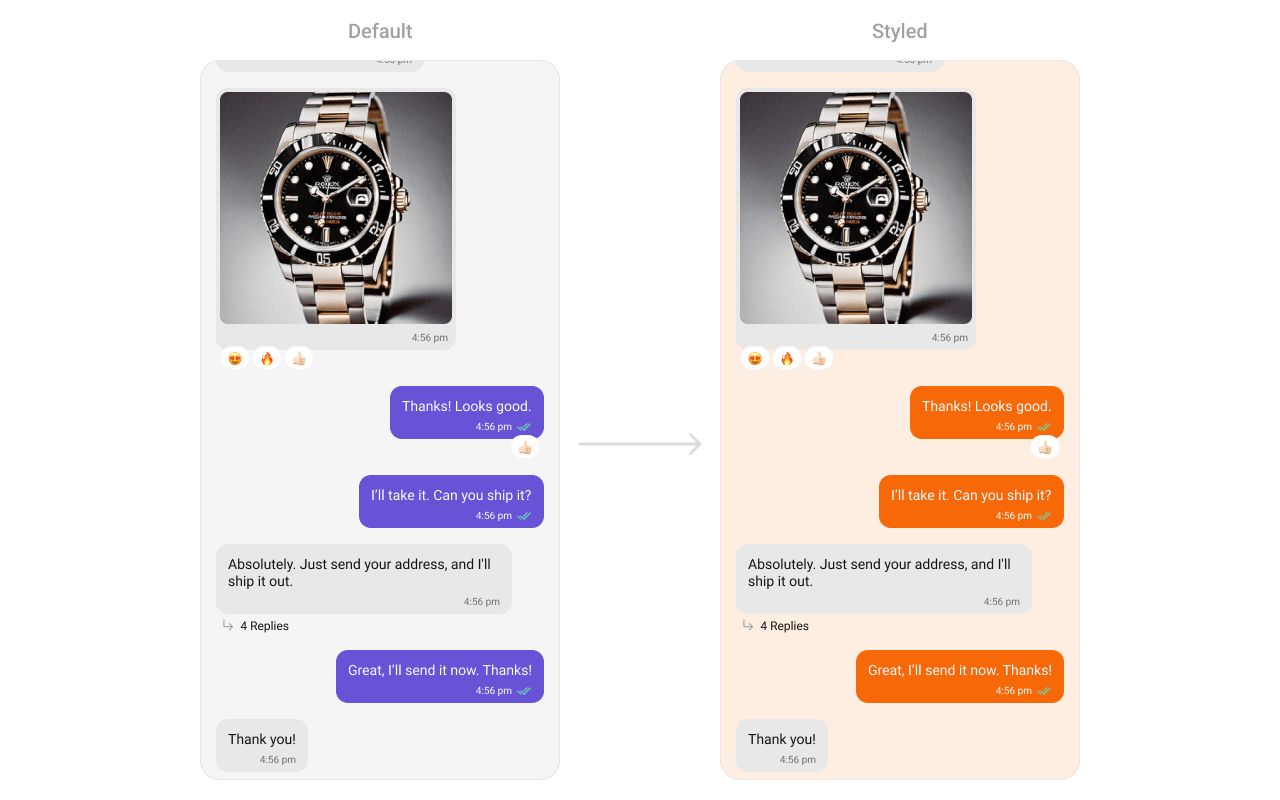
Define a custom style in
themes.xml:themes.xml
ViewModel
- Kotlin (XML Views)
- Jetpack Compose
Next Steps
Message Header
Display user/group info in the toolbar
Message Composer
Rich input for sending messages
Message Template
Customize message bubble structure
Component Styling
Detailed styling reference