

How It Works
All design tokens are defined as CSS custom properties on:root in the UIKit’s css-variables.css. You override them in your own global CSS file to apply your brand.
Light / Dark Mode
Dark mode is activated by setting thedata-theme="dark" attribute on the <html> element:
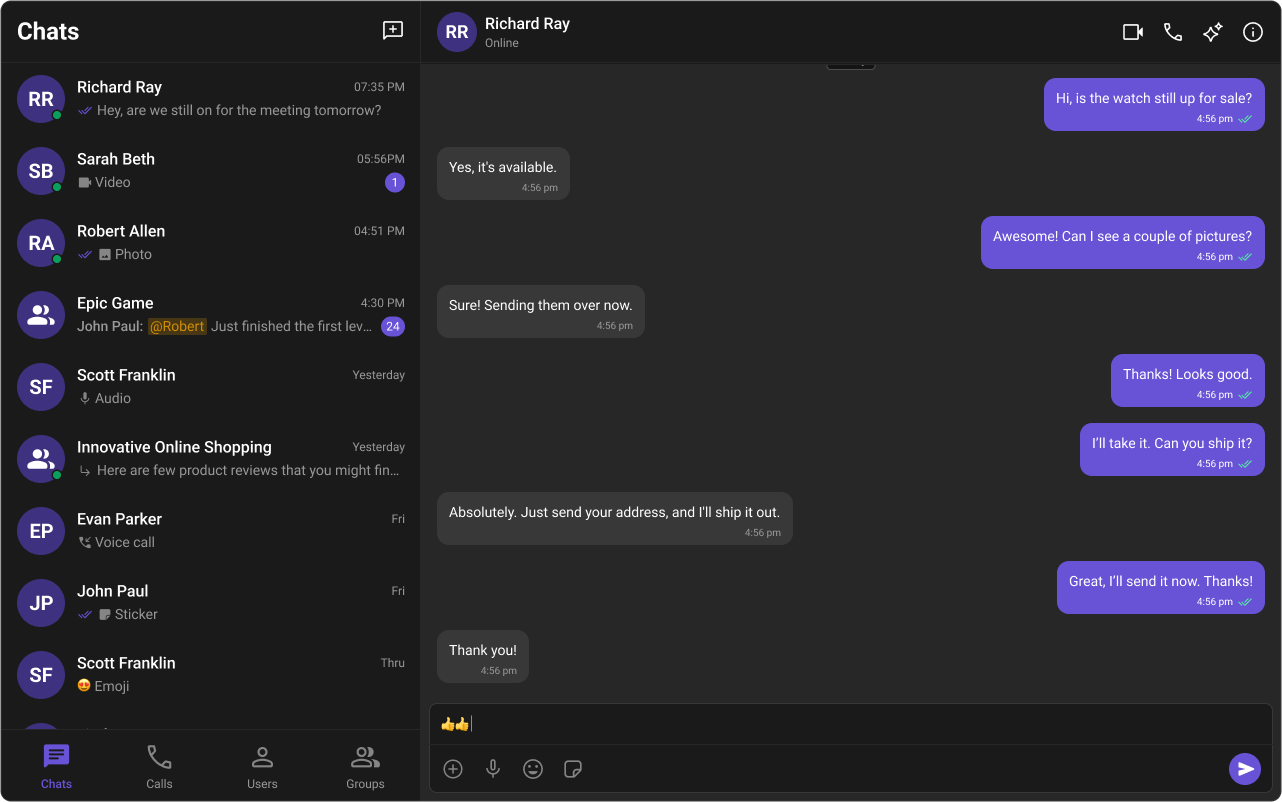
setTheme or toggleTheme directly:
| Method | Description |
|---|---|
setTheme(theme) | Set 'light' or 'dark' |
toggleTheme() | Flip between light and dark |
SSR Note: Always use Angular’sDOCUMENTinjection token instead ofdocumentdirectly.
Customizing Colors
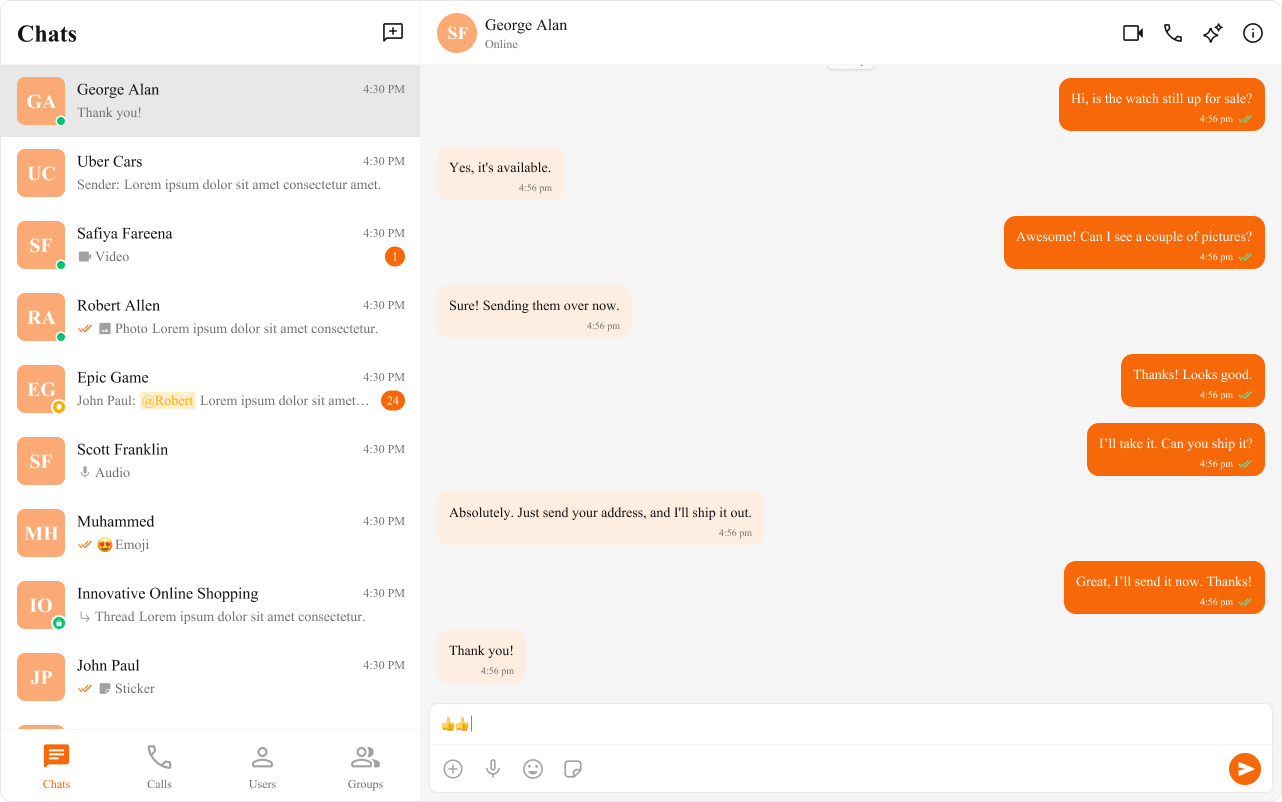
Override variables in your global stylesheet (styles.css or styles.scss):
Typography
| Variable | Weight | Size |
|---|---|---|
--cometchat-font-heading1-bold | 700 | 24px |
--cometchat-font-heading2-bold | 700 | 20px |
--cometchat-font-body-regular | 400 | 14px |
--cometchat-font-body-medium | 500 | 14px |
--cometchat-font-caption1-regular | 400 | 12px |
Spacing & Border Radius
Component-Level Scoping
To override styles for a specific instance, scope the variable override to that element’s selector: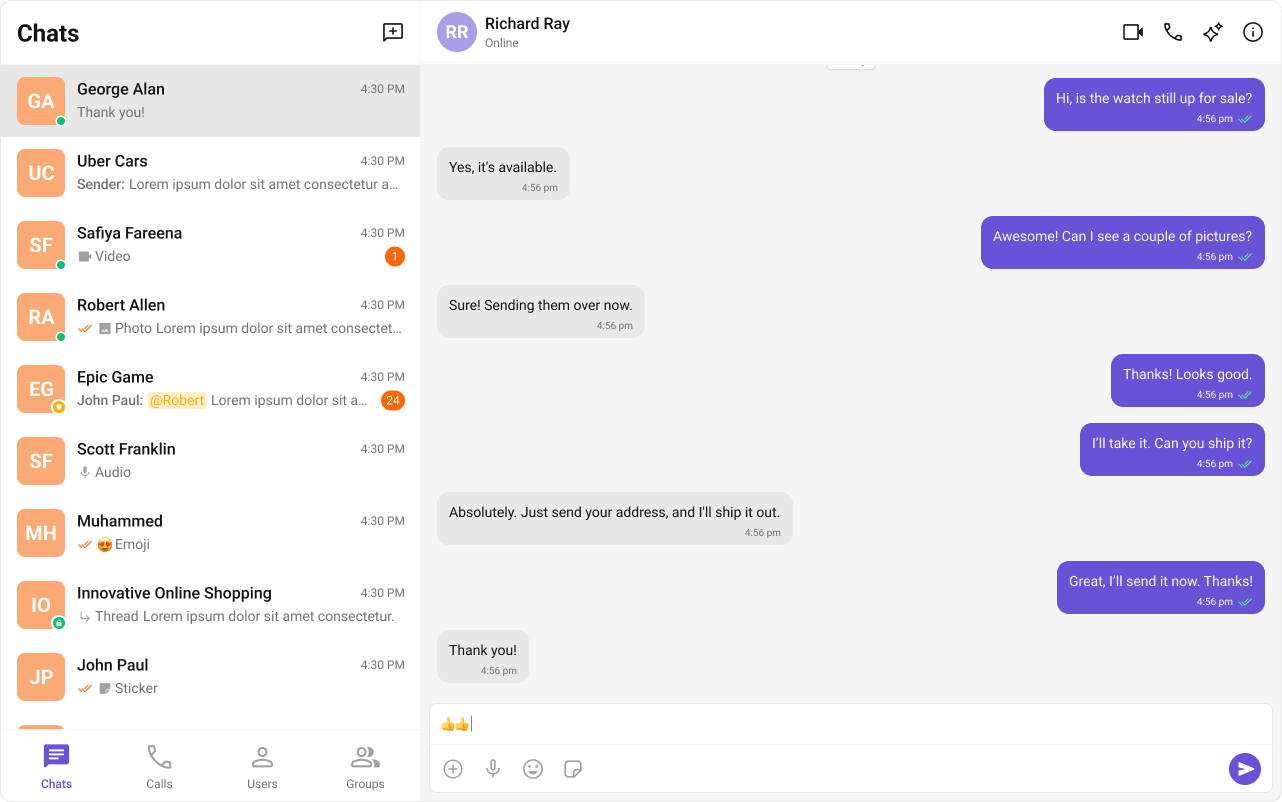
Shadows & Overlays
Avatars & Badges
Status Indicators
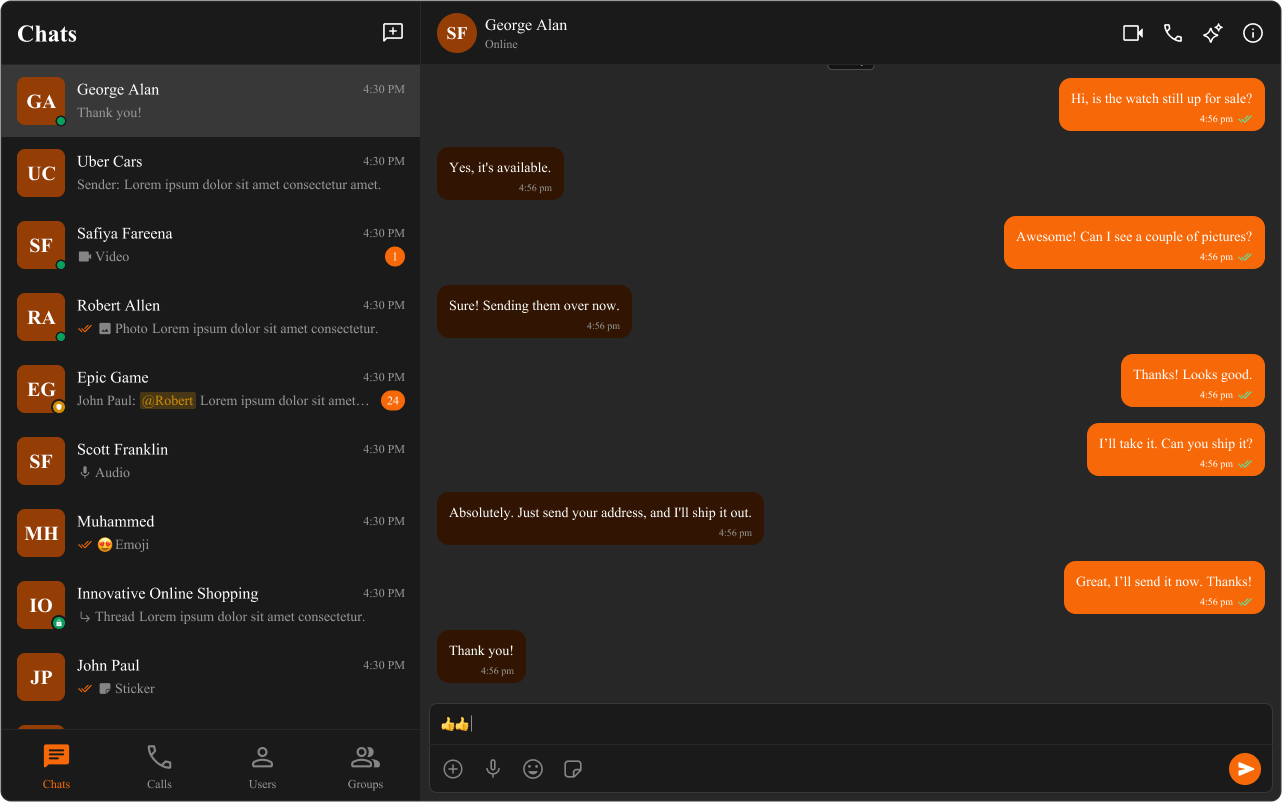
Complete Custom Theme Example
Sound Manager
CometChatSoundManager manages audio cues for incoming/outgoing calls and messages. Sound is a frozen object on CometChatSoundManager — access event keys via CometChatSoundManager.Sound.
Sound Events
| Event Key | When it plays |
|---|---|
incomingCall | Incoming call detected |
outgoingCall | Outgoing call initiated |
incomingMessage | New message from the current conversation |
incomingMessageFromOther | New message from a different conversation |
outgoingMessage | Message sent |
Methods
| Method | Description |
|---|---|
play(sound, customSound?) | Play default or custom audio for a sound event |
pause() | Pause the currently playing sound and reset position |
onIncomingMessage(customSound?) | Play incoming message sound directly |
onIncomingOtherMessage(customSound?) | Play incoming other message sound directly |
onOutgoingMessage(customSound?) | Play outgoing message sound directly |
onIncomingCall(customSound?) | Play incoming call sound (loops) |
onOutgoingCall(customSound?) | Play outgoing call sound (loops) |
hasInteracted() | Returns boolean — whether user has interacted with the page (required by browser autoplay policies) |
Usage
Design Token Pipelines
If your team uses a design token pipeline (e.g. Style Dictionary, Theo), you can generate the CSS variable overrides as a build artifact and import the output file instyles.css. The UIKit’s variable names follow a consistent --cometchat-{category}-{scale} pattern that maps cleanly to token schemas.
Color Palette
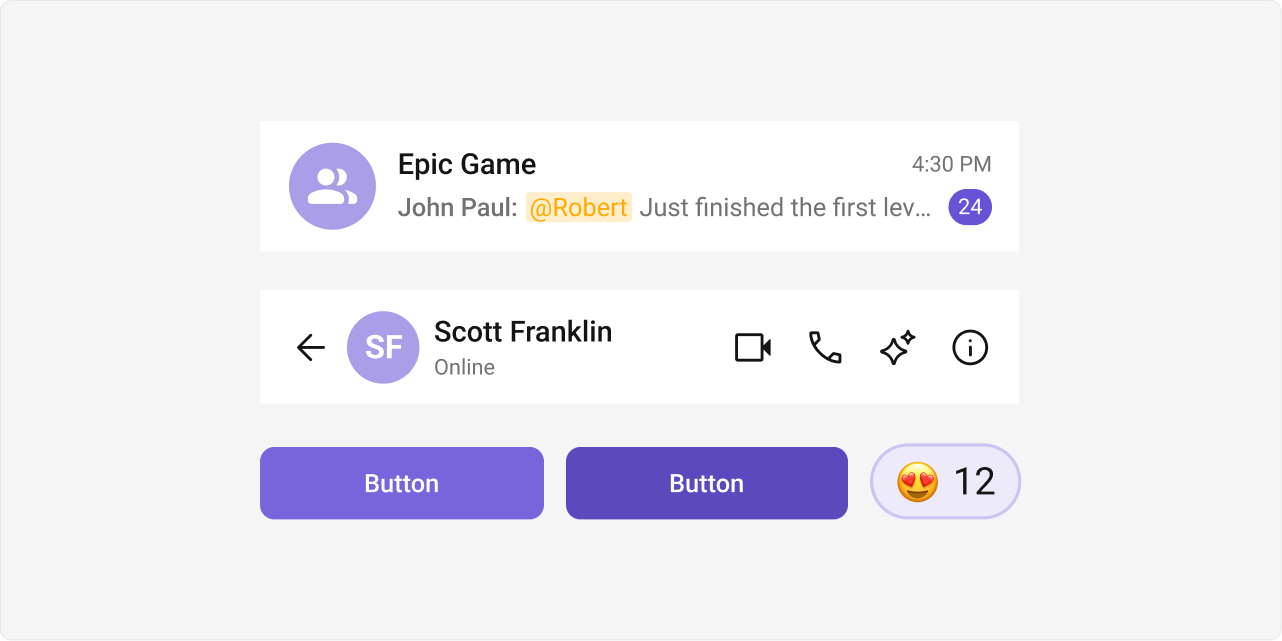
The primary color defines key actions, branding, and UI elements, while the extended primary palette provides variations for supporting components.Primary Color
Light Mode
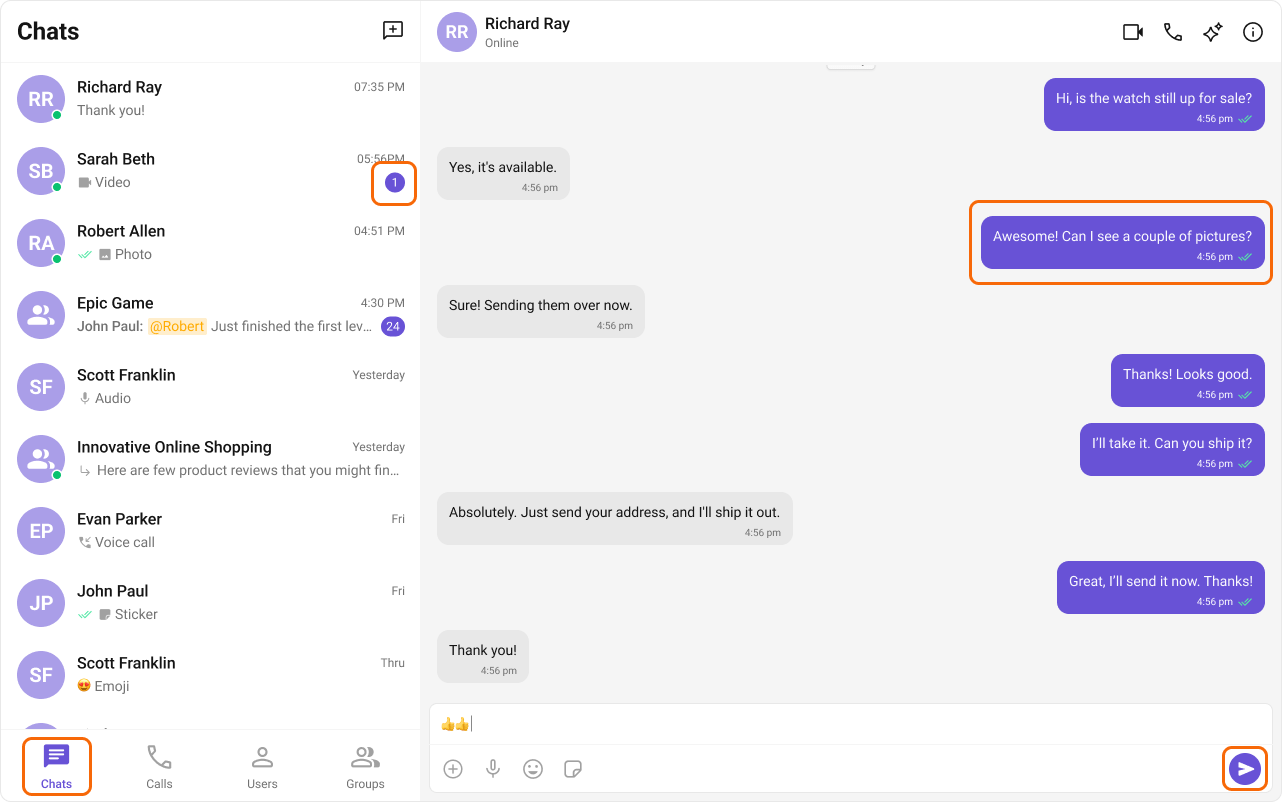
Dark Mode
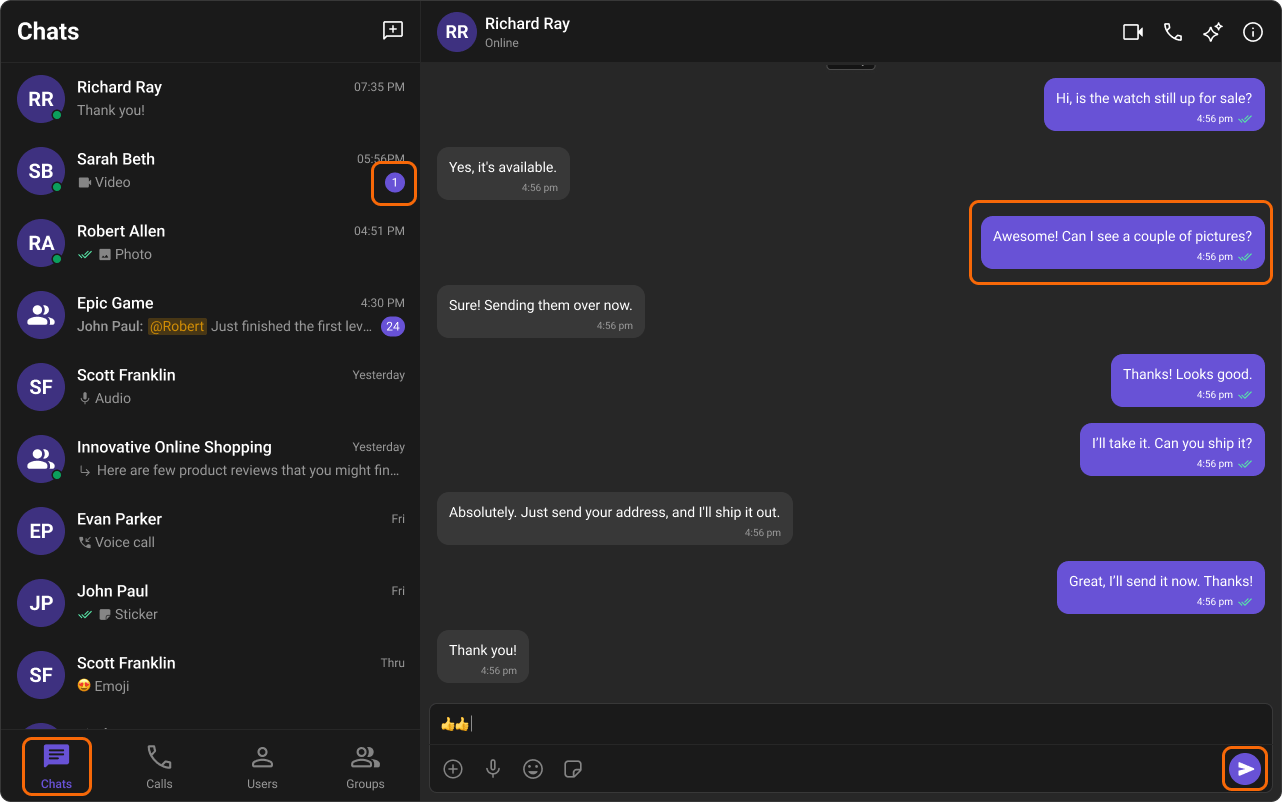
Extended Primary Colors
Light Mode
Dark Mode
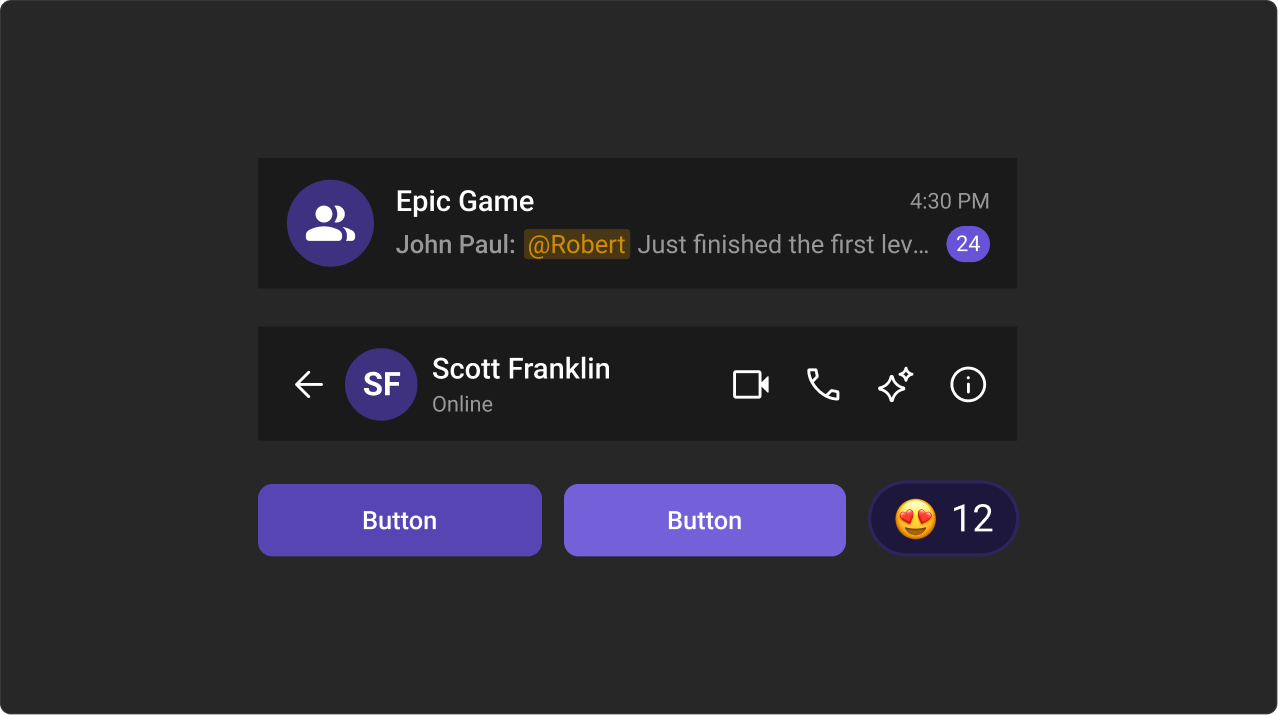
Full Variable Reference
Colors
| Variable | Default (Light) | Purpose |
|---|---|---|
--cometchat-primary-color | #6852D6 | Buttons, highlights, badges |
--cometchat-neutral-color-900 | #141414 | Primary text |
--cometchat-neutral-color-600 | #727272 | Secondary text |
--cometchat-neutral-color-50 | #FFFFFF | Base background |
--cometchat-error-color | #F44649 | Error states |
--cometchat-success-color | #09C26F | Success states |
--cometchat-warning-color | #FFAB00 | Warning states |
--cometchat-info-color | #0B7BEA | Info states |
Semantic Aliases
| Variable | Maps To |
|---|---|
--cometchat-text-color-primary | --cometchat-neutral-color-900 |
--cometchat-text-color-secondary | --cometchat-neutral-color-600 |
--cometchat-background-color-01 | --cometchat-neutral-color-50 |
--cometchat-background-color-02 | --cometchat-neutral-color-100 |
--cometchat-border-color-default | --cometchat-neutral-color-300 |
--cometchat-primary-button-background | --cometchat-primary-color |