

Overview
TheOngoing Call is a Component that provides users with a dedicated interface for managing real-time voice or video conversations. It includes features like a video display area for video calls, call controls for mic and camera management, participant information, call status indicators, and options for call recording and screen-sharing.
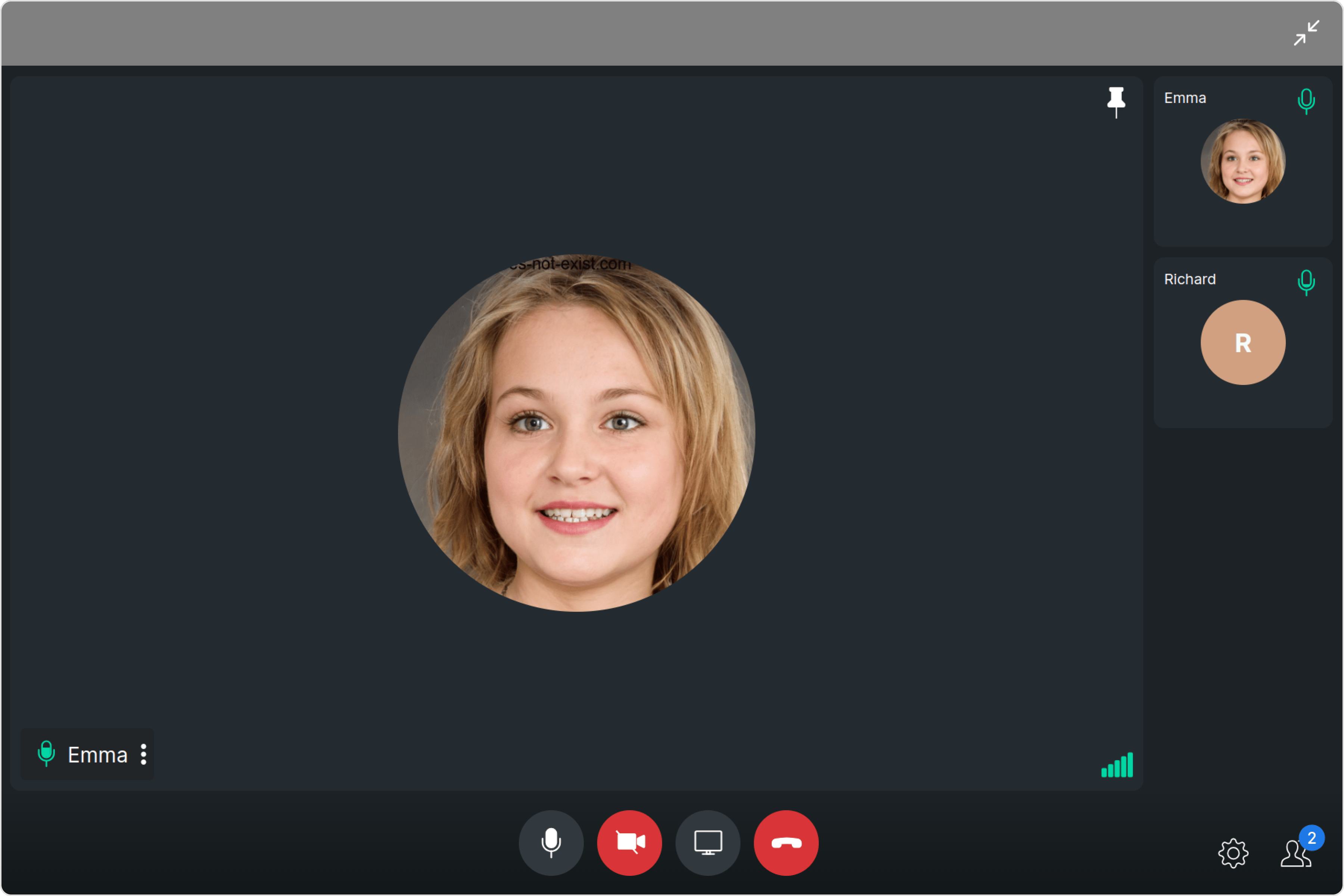
Ongoing Call is comprised of the following components:
Usage
Integration
- app.module.ts
- app.component.ts
- app.component.html
Actions
Actions dictate how a component functions. They are divided into two types: Predefined and User-defined. You can override either type, allowing you to tailor the behavior of the component to fit your specific needs.1. onError
This action doesn’t change the behavior of the component but rather listens for any errors that occur in the Ongoing component.- app.component.ts
- app.component.html
Filters
Filters allow you to customize the data displayed in a list within aComponent. You can filter the list based on your specific criteria, allowing for a more customized. Filters can be applied using RequestBuilders of Chat SDK.
You can adjust the callSettingsBuilder in the OnGoing Call Component to customize the OnGoing Call. Numerous options are available to alter the builder to meet your specific needs. For additional details on CallSettingsBuilder, please visit CallSettingsBuilder.
Example In the example below, we are applying a filter to the outgoing call to display only audio calls and include a recording button.
- app.component.ts
- app.component.html
Events
Events are emitted by aComponent. By using event you can extend existing functionality. Being global events, they can be applied in Multiple Locations and are capable of being Added or Removed.
The list of events emitted by the OnGoing Call Component is as follows.
Adding
CometChatCallEvents Listener’s
- TypeScript
Removing
CometChatCallEvents Listener’s
- TypeScript
Customization
To fit your app’s design requirements, you can customize the appearance of the Ongoing Call component. We provide exposed methods that allow you to modify the experience and behavior according to your specific needs.Style
Using Style you can customize the look and feel of the component in your app, These parameters typically control elements such as the color, size, shape, and fonts used within the component.1. Ongoing Call Style
To customize the appearance, you can assign aCallscreenStyle object to the Ongoing Call component.
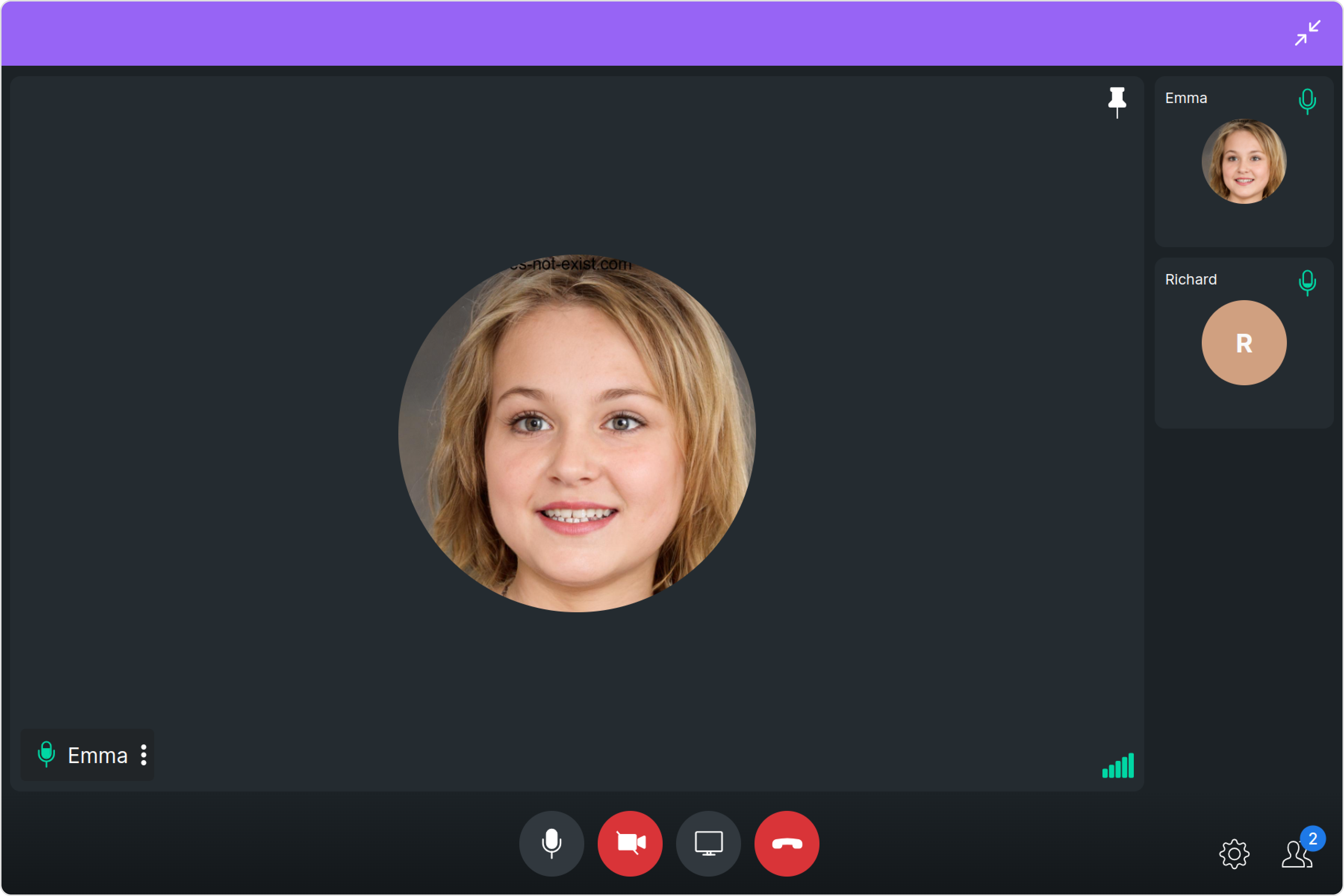
ongoingCallStyle.
- app.component.ts
- app.component.html
The following properties are exposed by CallscreenStyle:
Functionality
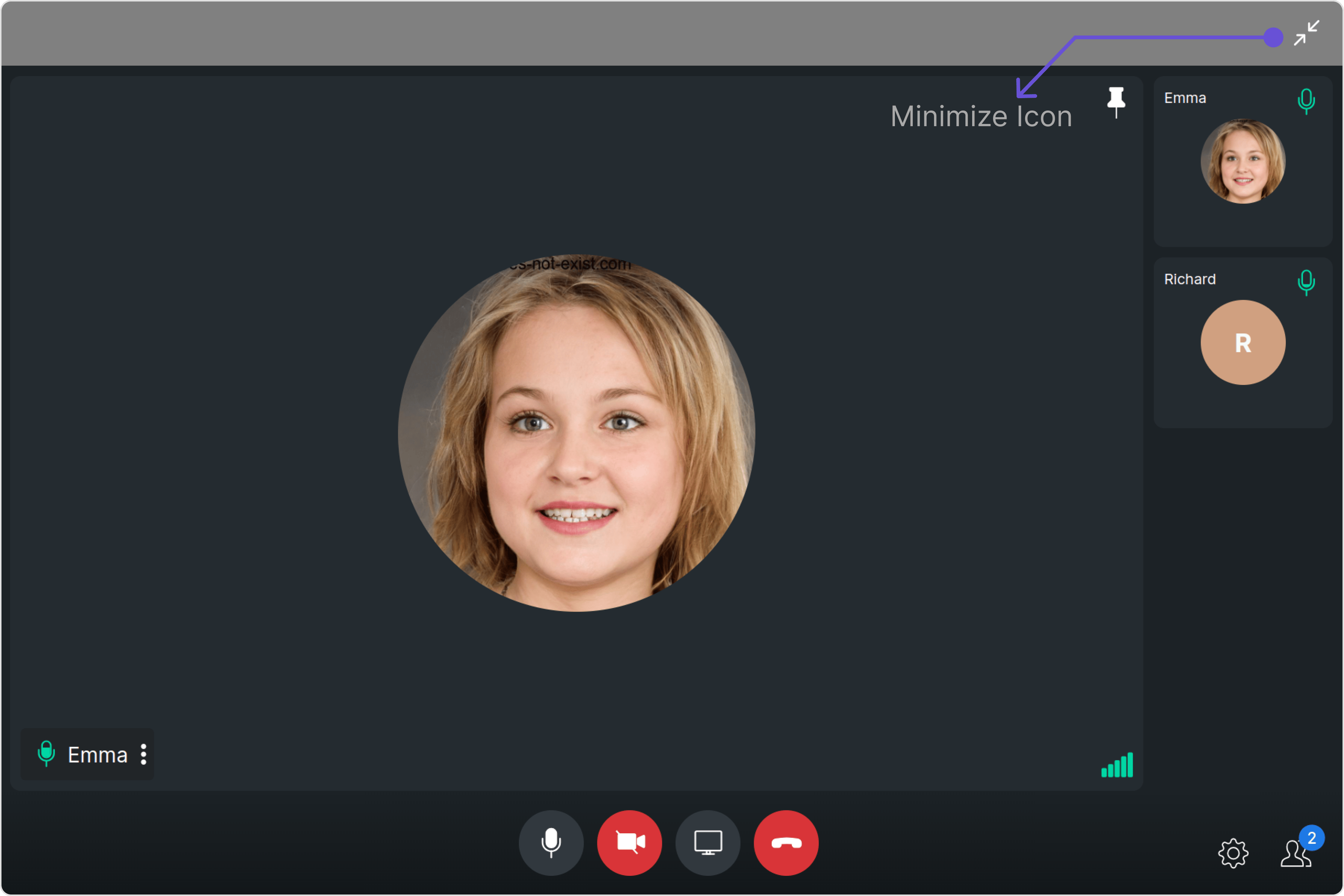
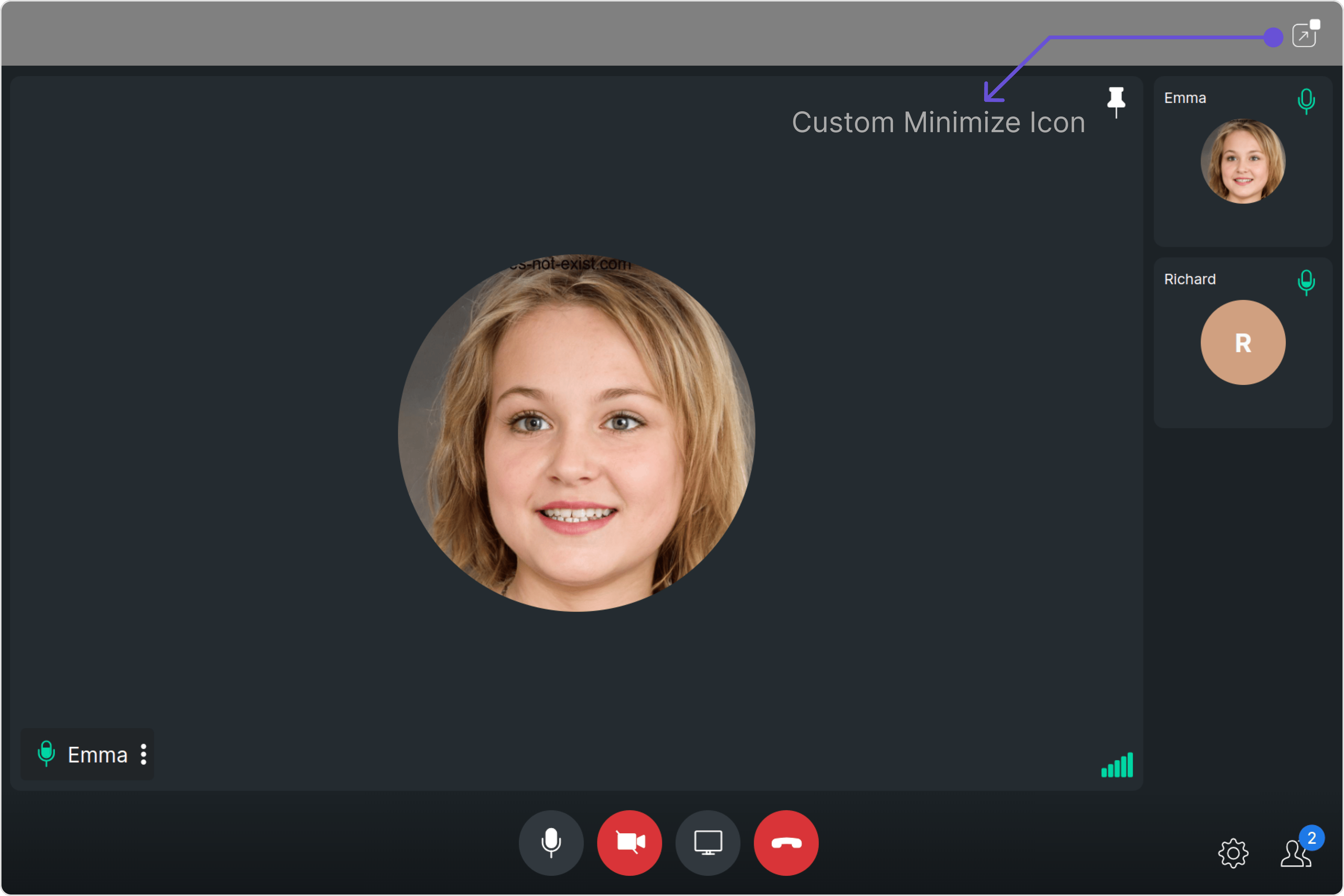
These are a set of small functional customizations that allow you to fine-tune the overall experience of the component. With these, you can change text, set custom icons, and toggle the visibility of UI elements. Here is a code snippet demonstrating how you can customize the functionality of theOngoing Call component.
- app.component.ts
- app.component.html
Advanced
For advanced-level customization, you can set custom views to the component. This lets you tailor each aspect of the component to fit your exact needs and application aesthetics. You can create and define your views, layouts, and UI elements and then incorporate those into the component. theOnGoing Call component does not offer any advanced functionalities beyond this level of customization.