

AI Integration Quick Reference
AI Integration Quick Reference
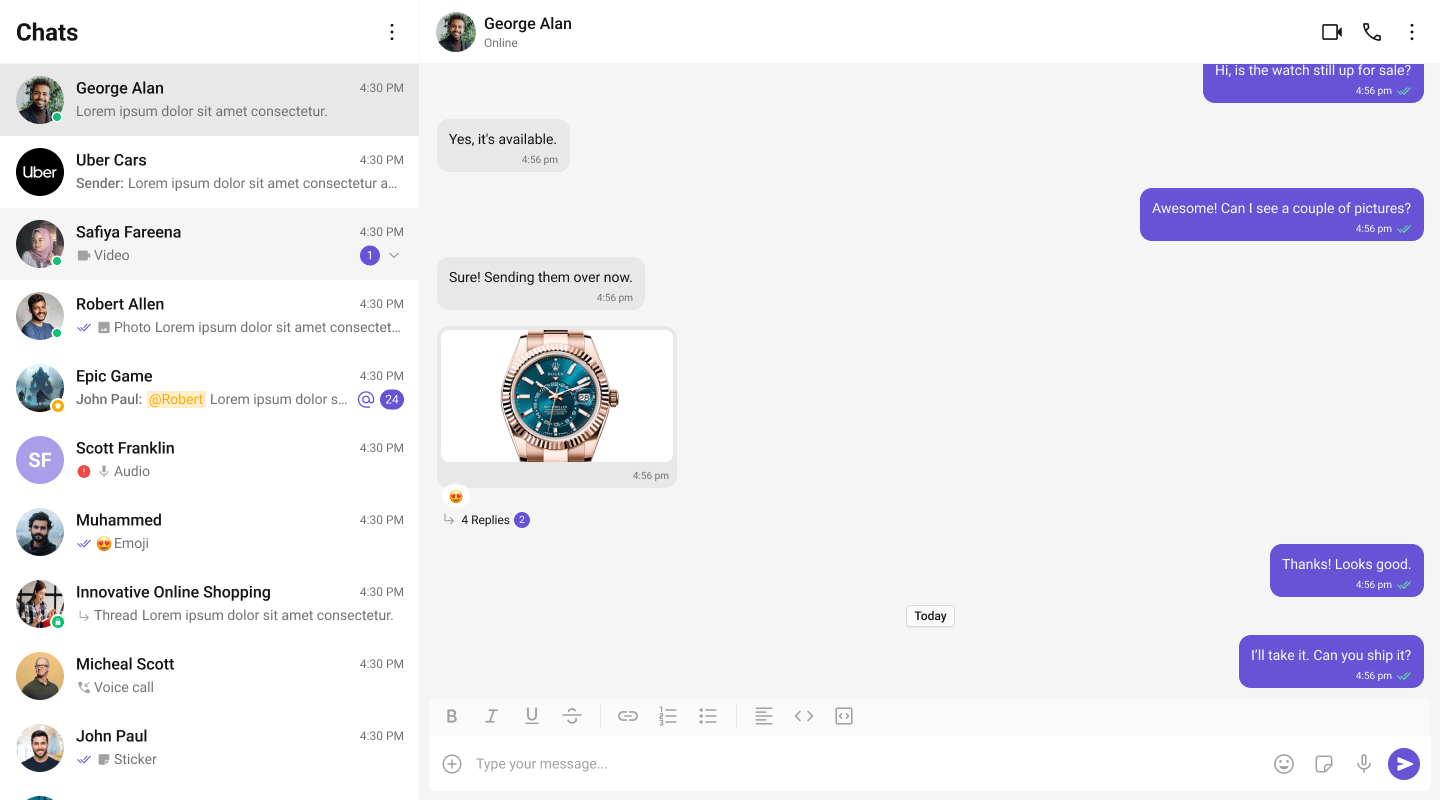
What You’re Building
Three sections working together:- Sidebar (conversation list) — shows all active conversations (users and groups)
- Message view — displays chat messages for the selected conversation in real time
- Message composer — text input with support for media, emojis, and reactions
Full Code
Create a React island component with the chat UI, then render it in an Astro page withclient:only="react".
src/components/ConversationChat.tsx
src/pages/chat.astro
How It Works
client:only="react"tells Astro to skip server-rendering and hydrate the component entirely on the client. This is required because CometChat uses browser APIs.- React island — the CometChat UI lives in a self-contained React component. Astro handles the page shell, React handles the interactive chat.
- CometChatProvider wraps the entire tree — it supplies theme, locale, and event context to all CometChat components.
- CometChatConversations renders the sidebar list. When a user clicks a conversation,
onItemClickfires with theConversationobject. - handleConversationClick extracts the
UserorGroupfrom the conversation and stores it in state. - Message components (
MessageHeader,MessageList,MessageComposer) receive eitheruserorgroupas a prop — never both at the same time.
Run
http://localhost:4321/chat. You should see the conversation list on the left. Click any conversation to load messages on the right.
Next Steps
One-to-One / Group Chat
Single chat window without a sidebar
Tab-Based Chat
Tabbed navigation with Chats, Calls, Users
Components Overview
Browse all prebuilt UI components
Theming
Customize colors, fonts, and styles