

AI Integration Quick Reference
AI Integration Quick Reference
When to use this
- You want to customize the look of incoming and outgoing message bubbles.
- You need different styles for text, image, audio, video, file, sticker, poll, or collaborative bubbles.
- You want to style call action bubbles, delete bubbles, or AI assistant bubbles.
- You need to customize quoted reply previews.
- You prefer centralized styling through
res/values/themes.xml.
Prerequisites
- CometChat UI Kit for Android is installed and initialized.
- Your app theme extends
CometChatTheme.DayNight. - You can edit
res/values/themes.xmlin your Android module. - You rebuild or sync Gradle after updating styles.
Quick start
1
Set up the global bubble hubs
Define
CustomIncomingMessageBubbleStyle and CustomOutgoingMessageBubbleStyle in res/values/themes.xml and connect them to AppTheme.2
Style a specific bubble type
Create a custom style for the bubble type (e.g.,
CustomIncomingTextBubbleStyle) and link it inside the hub style.3
Build and verify
Run the app, open a conversation, and confirm the bubble styling.
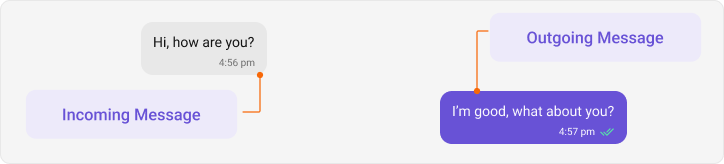
Styling Architecture
To style message bubbles effectively without duplicating code, understand this inheritance hierarchy.All code in this guide belongs in
res/values/themes.xml.AppTheme: The root theme of your application.Message Bubble Styles: Acts as a central hub for all incoming/outgoing message styles. Linked directly to theAppTheme.Specific Bubble Styles: Targets specific message types (e.g., Text, Video, Audio). These are linked inside the Message Bubble Styles.
Global Setup
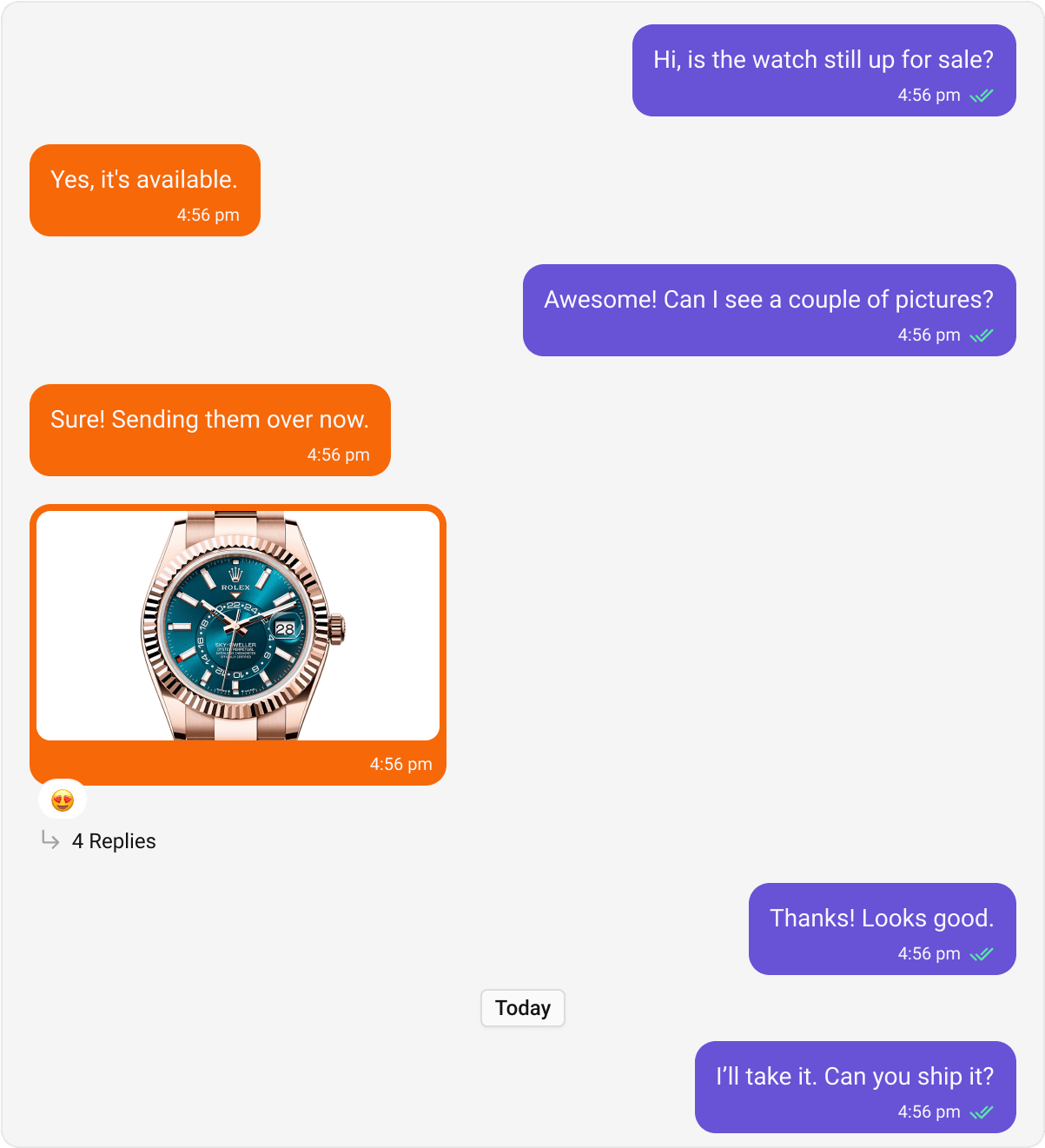
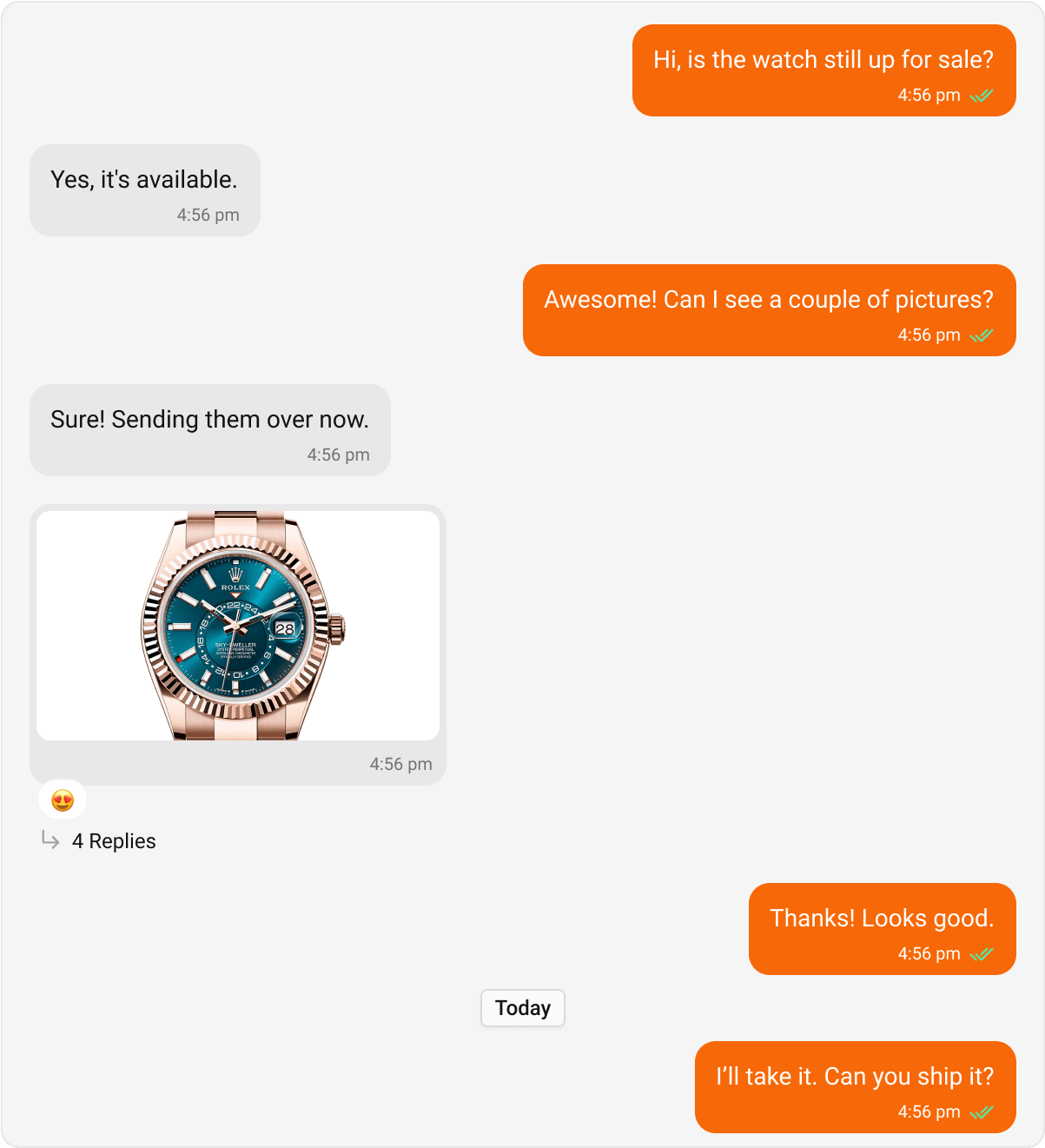
Define this once in yourres/values/themes.xml. All subsequent custom bubble styles will be routed through these hubs.
themes.xml
Core Message Bubbles
The following sections define how to style specific types of messages. Define the custom style, then link it to the central hubs (CustomIncomingMessageBubbleStyle or CustomOutgoingMessageBubbleStyle) established above.
Text Bubble
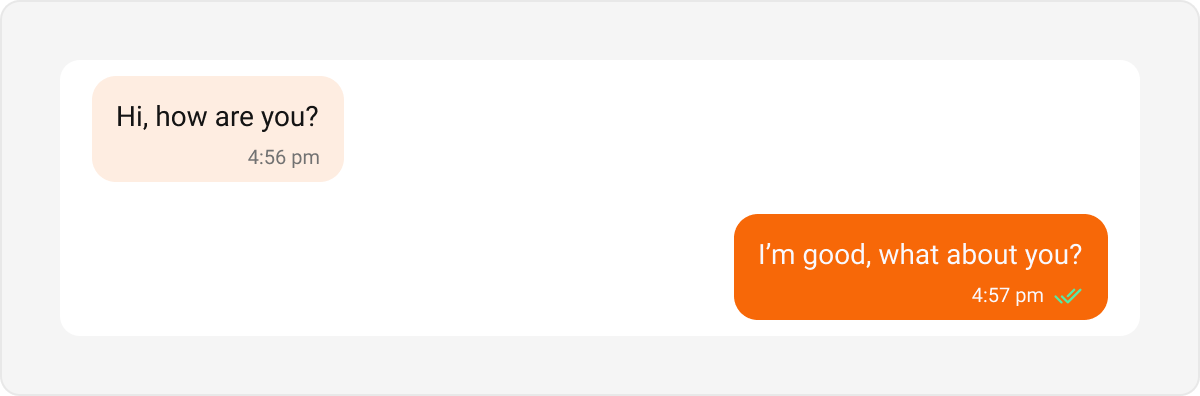
Text bubbles display plain text messages. These are the most common bubble type. Default & Customization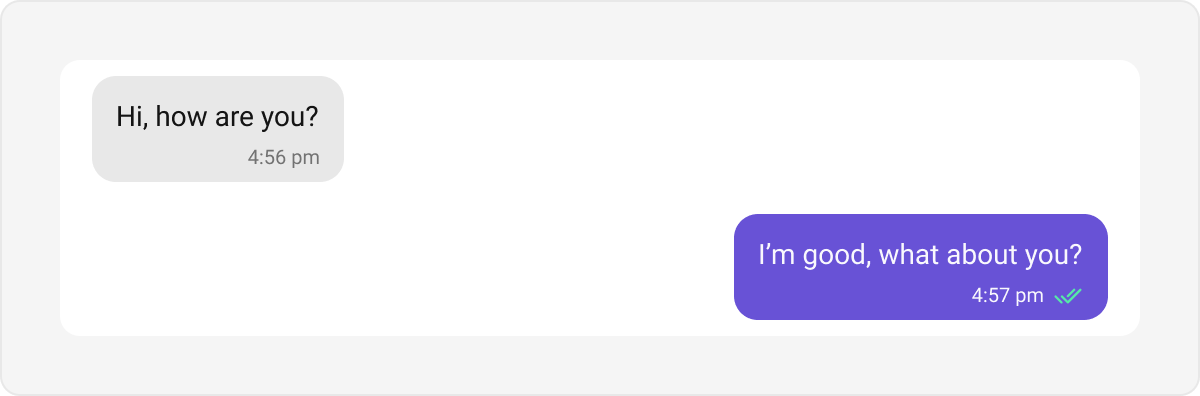
themes.xml
Link Preview Bubble
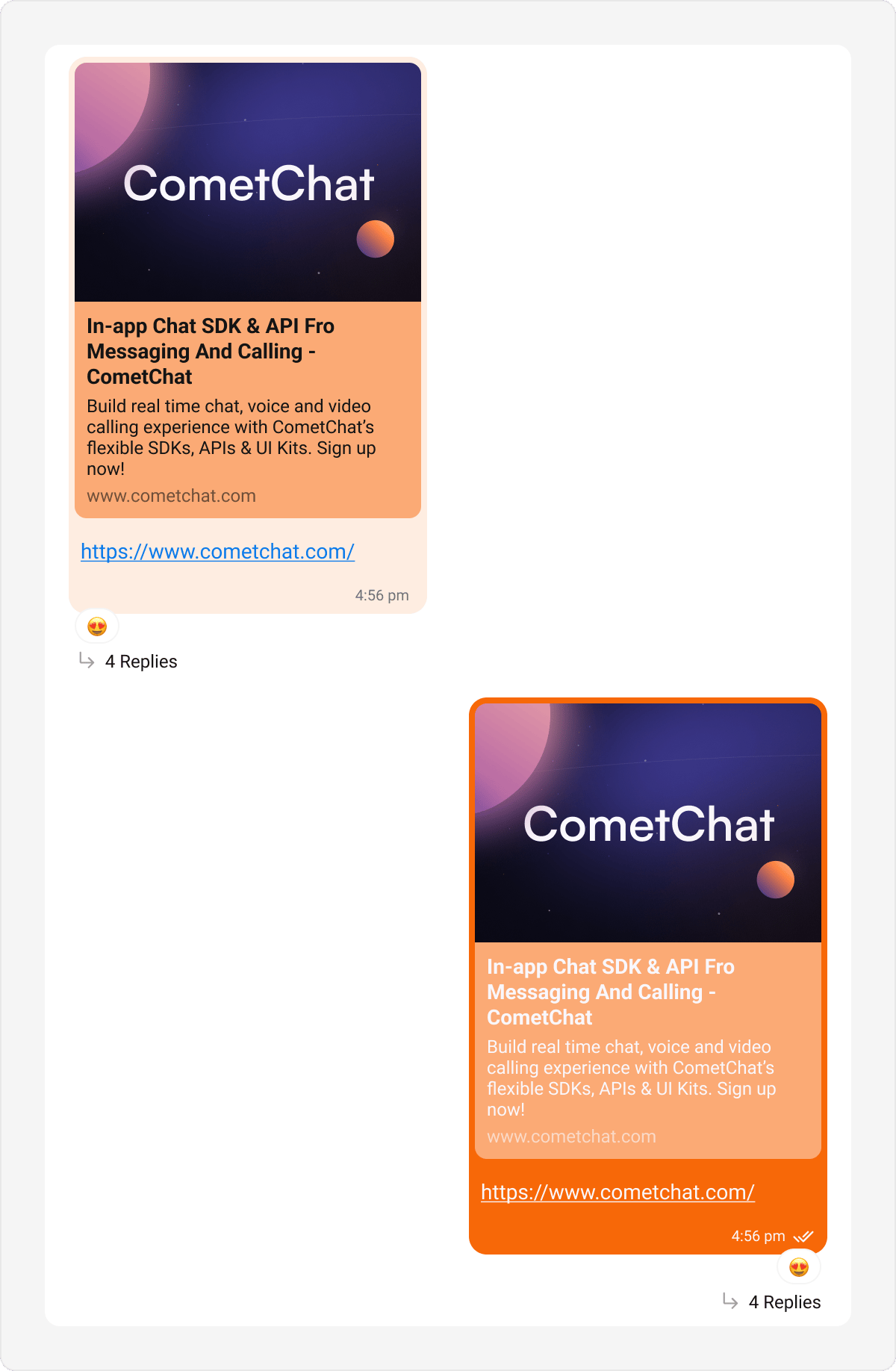
Displays a preview of links shared in messages, enriching the experience with titles, descriptions, and images. Default & Customization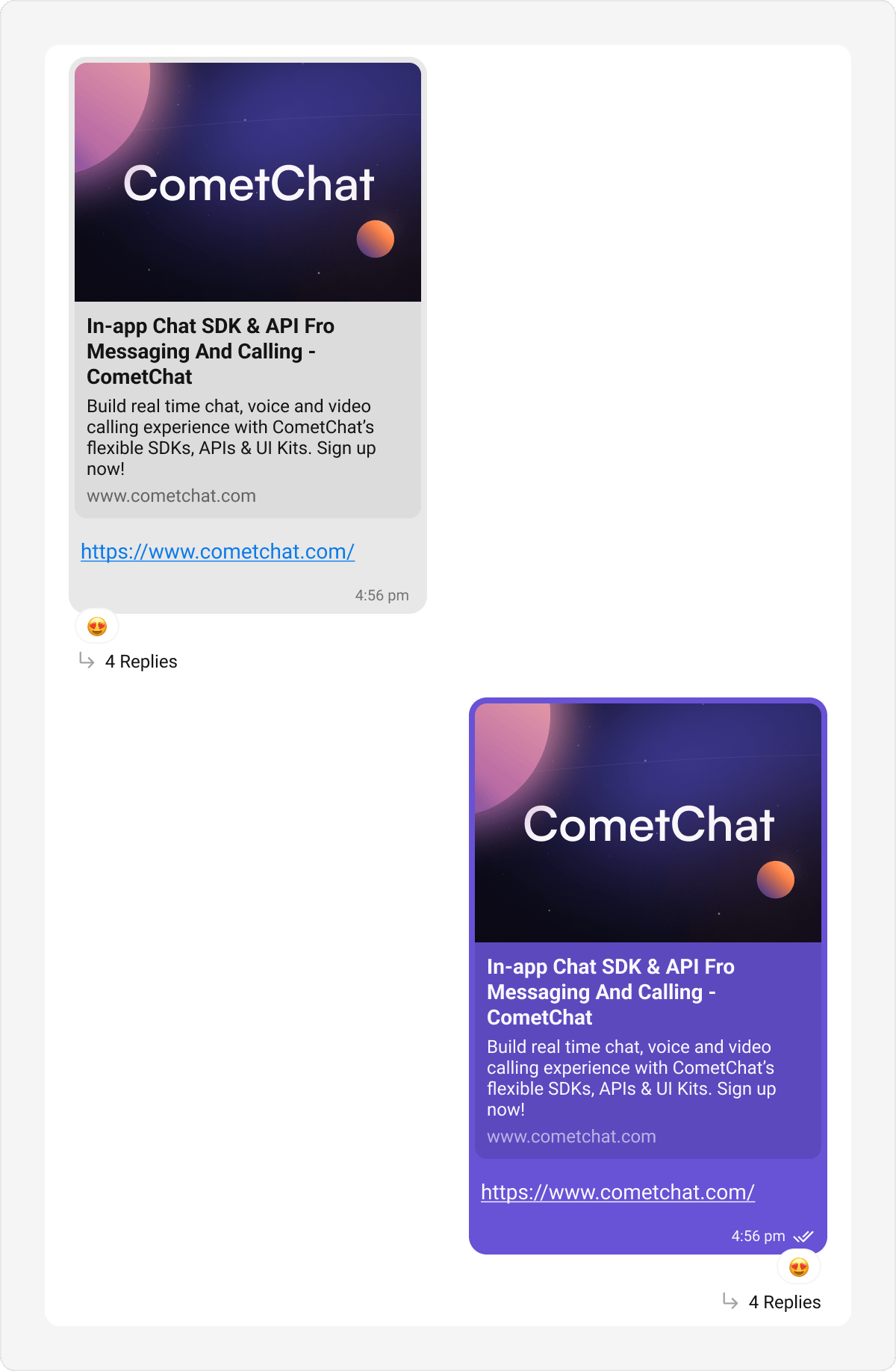
themes.xml
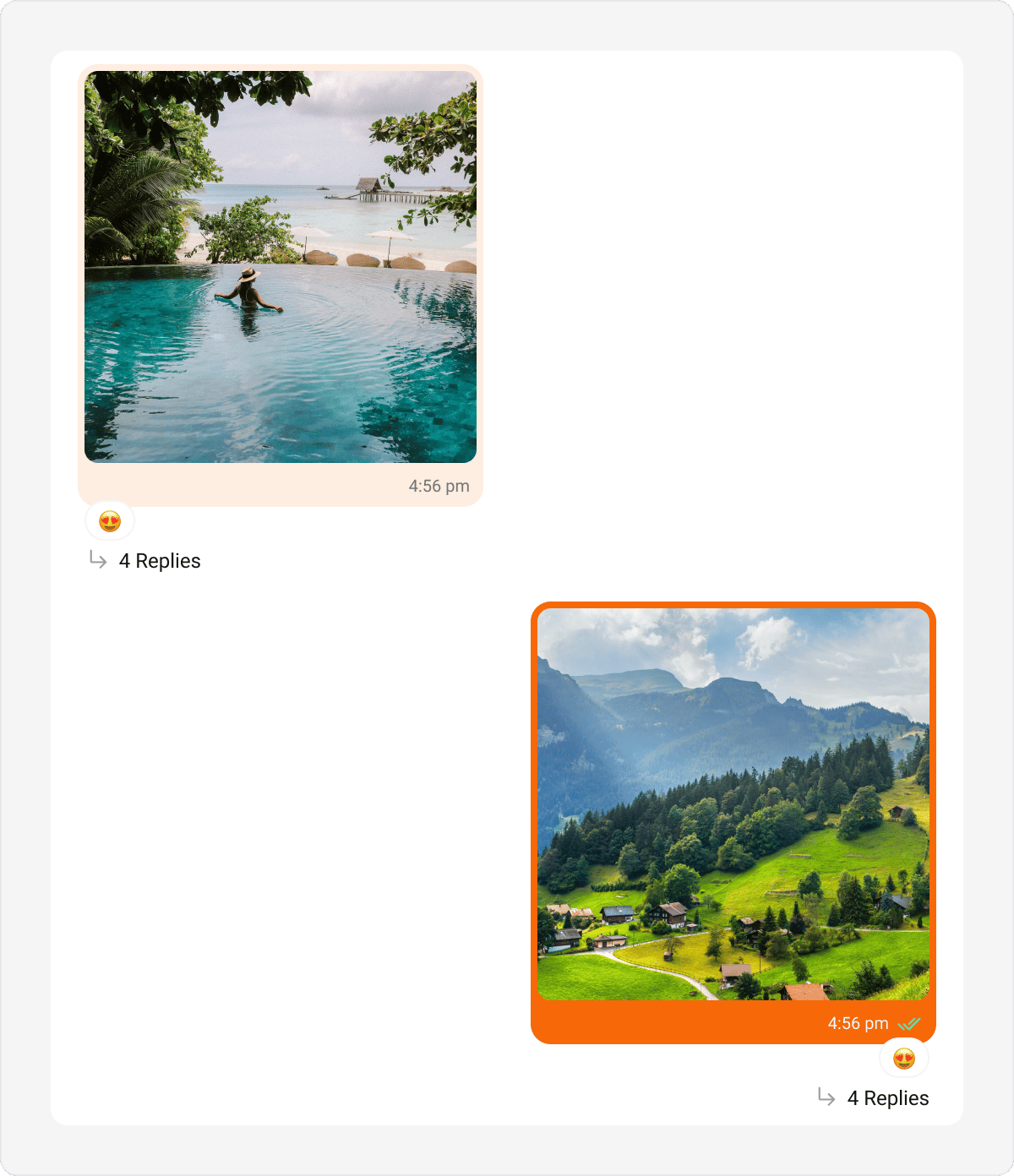
Image Bubble
Image bubbles display images shared within a conversation. Default & Customization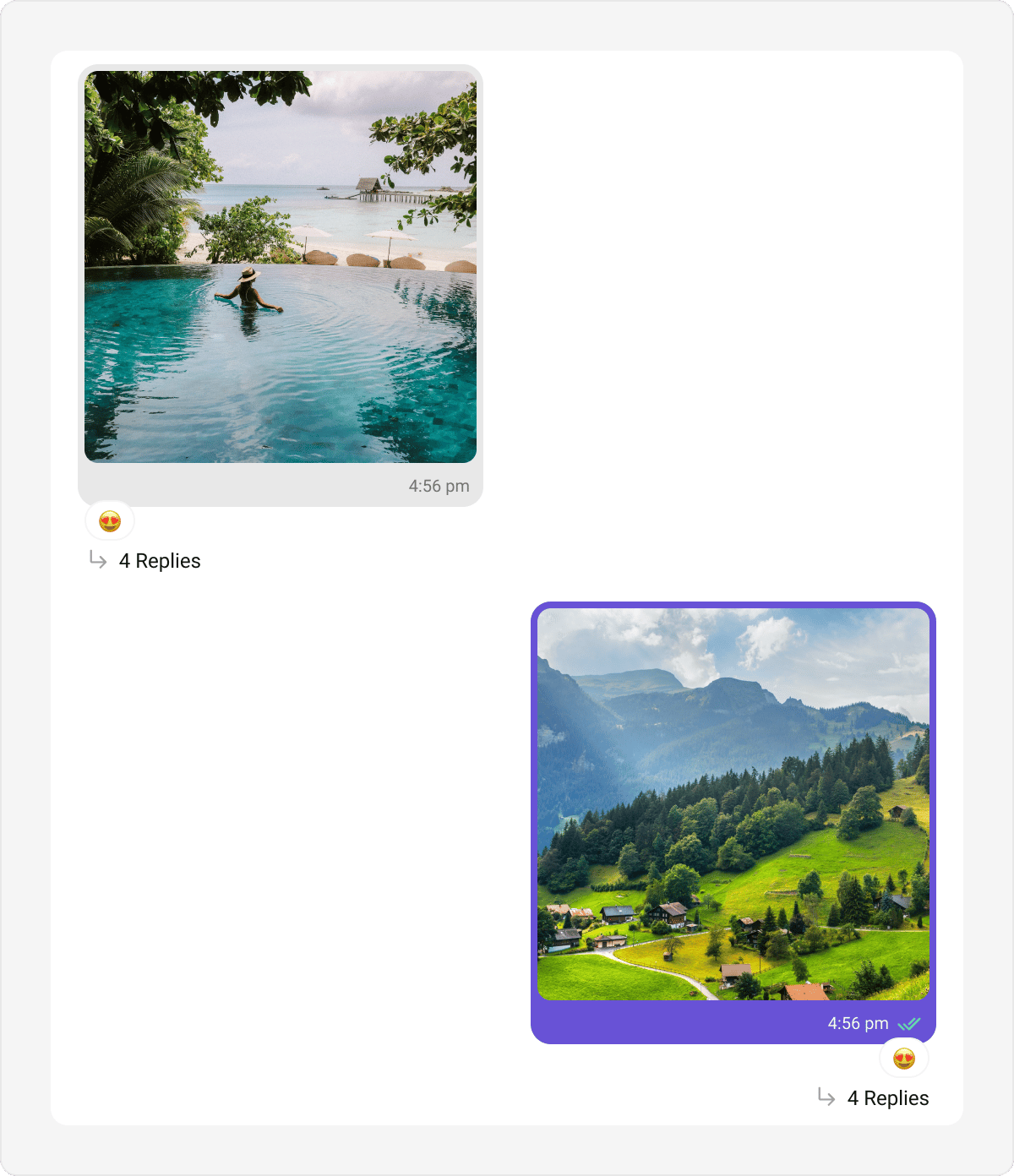
themes.xml
Video Bubble
Video bubbles display video messages or clips in a chat. Customization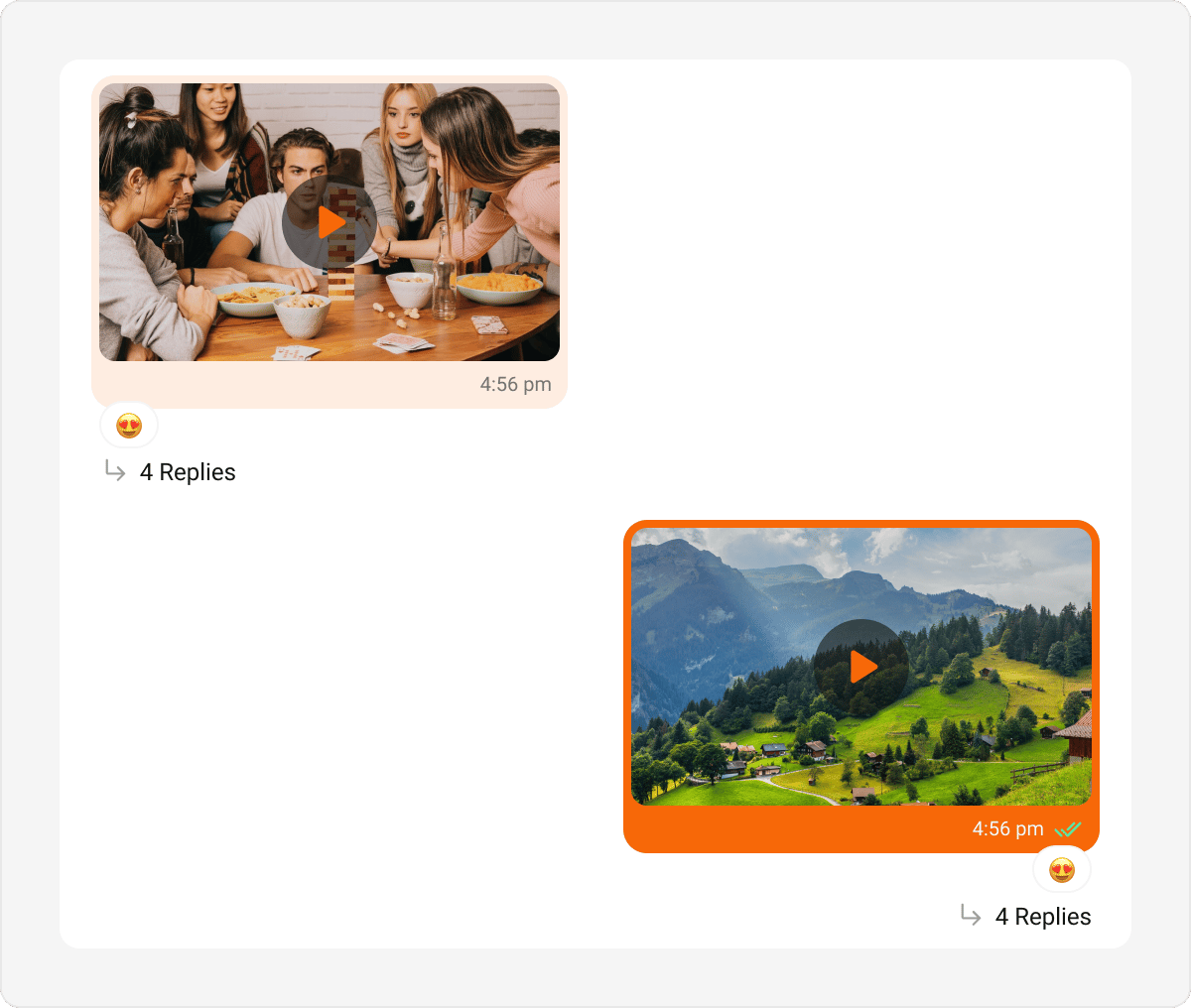
themes.xml
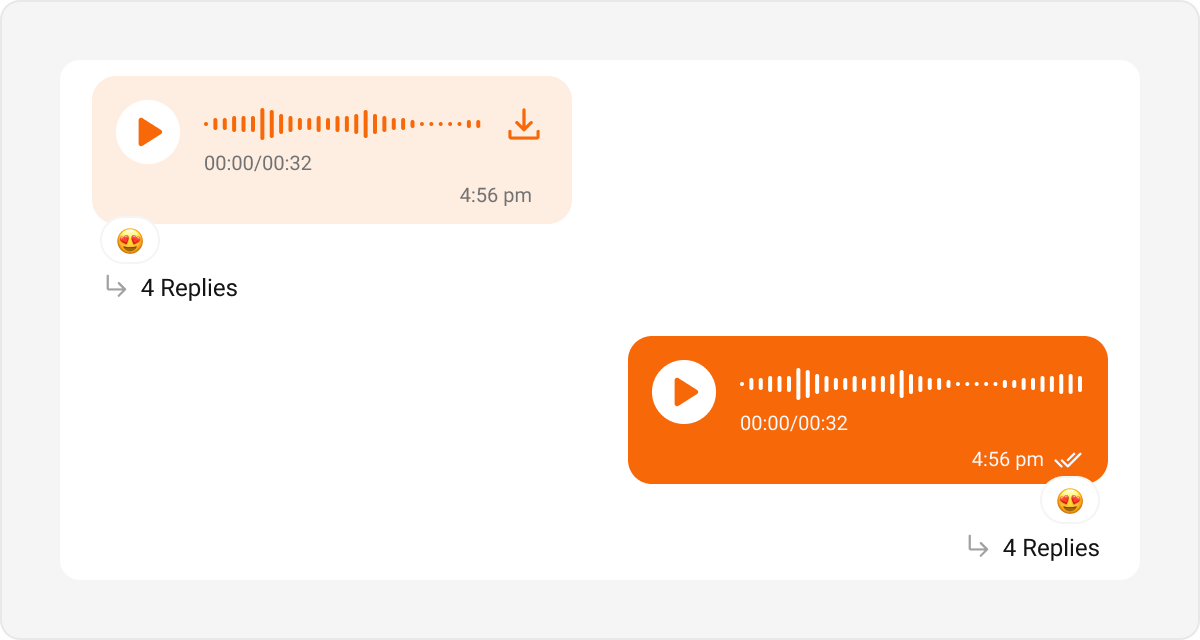
Audio Bubble
Audio bubbles represent audio messages or voice recordings. Default & Customization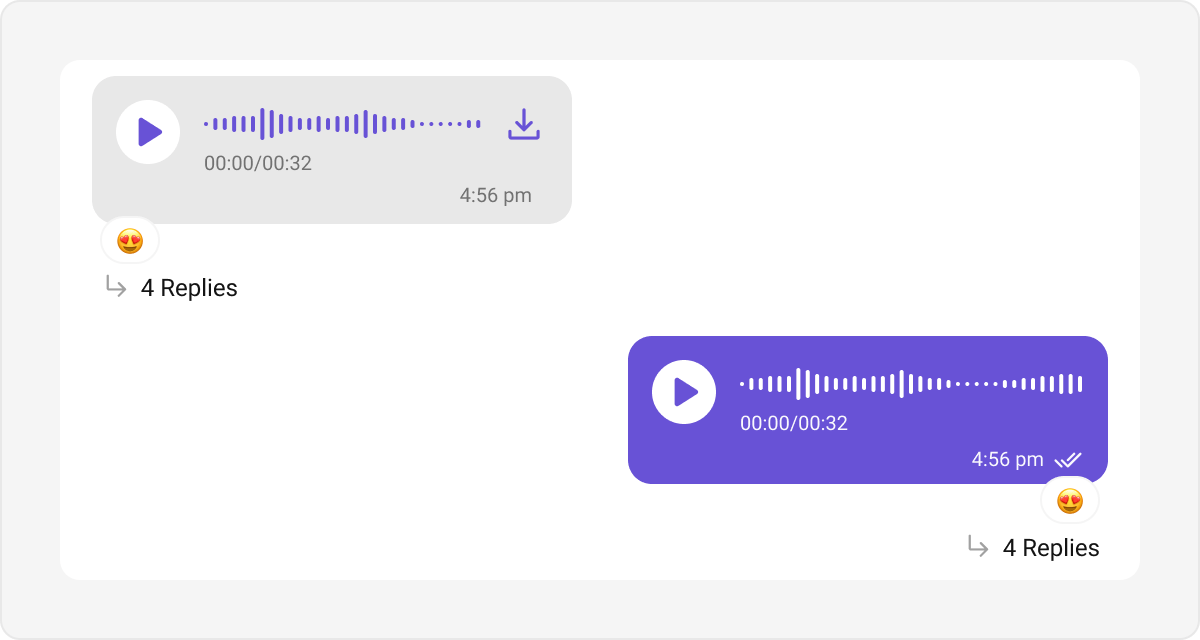
themes.xml
File Bubble
Displays shared files, such as documents, PDFs, or spreadsheets. Default & Customization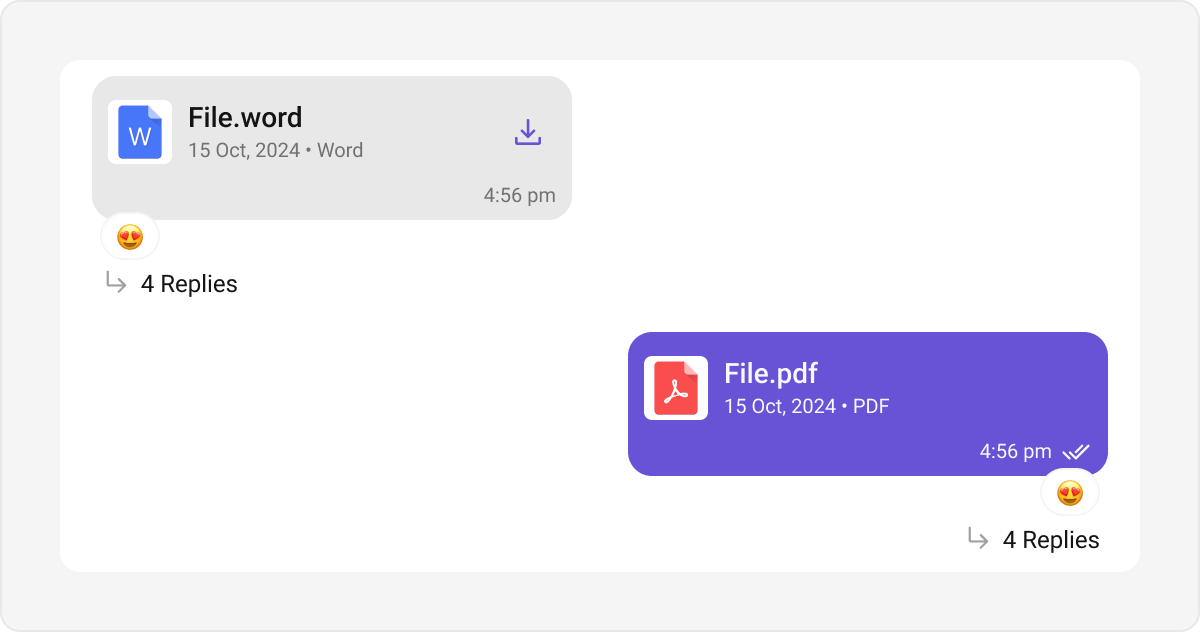
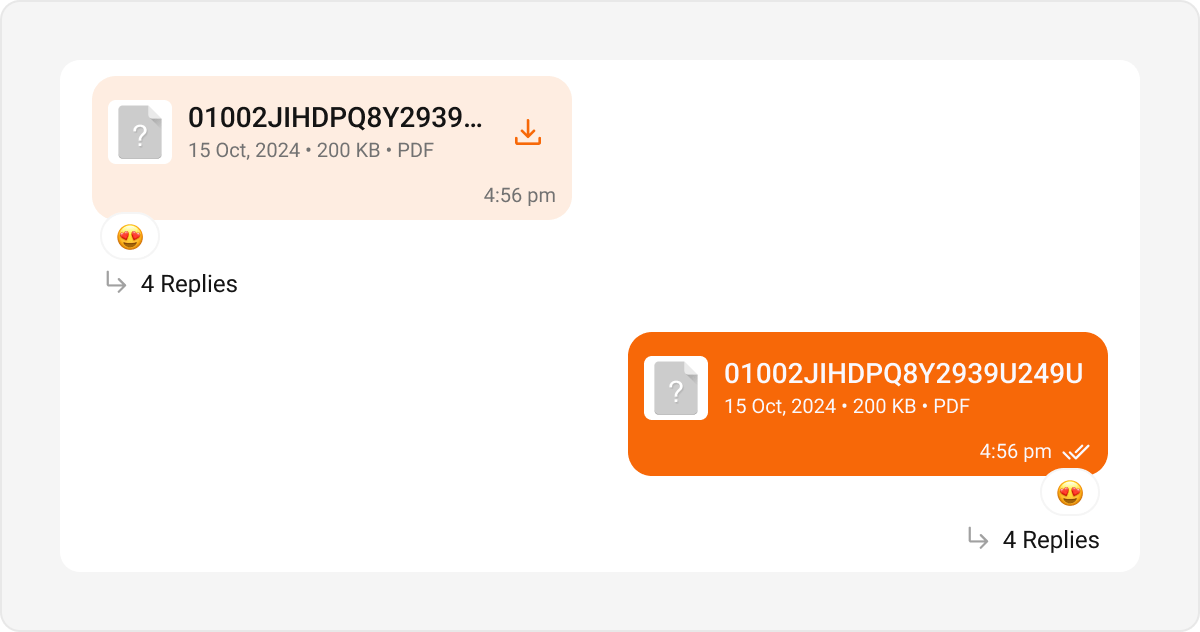
themes.xml
Sticker Bubble
Displays visual stickers shared in a conversation. Default & Customization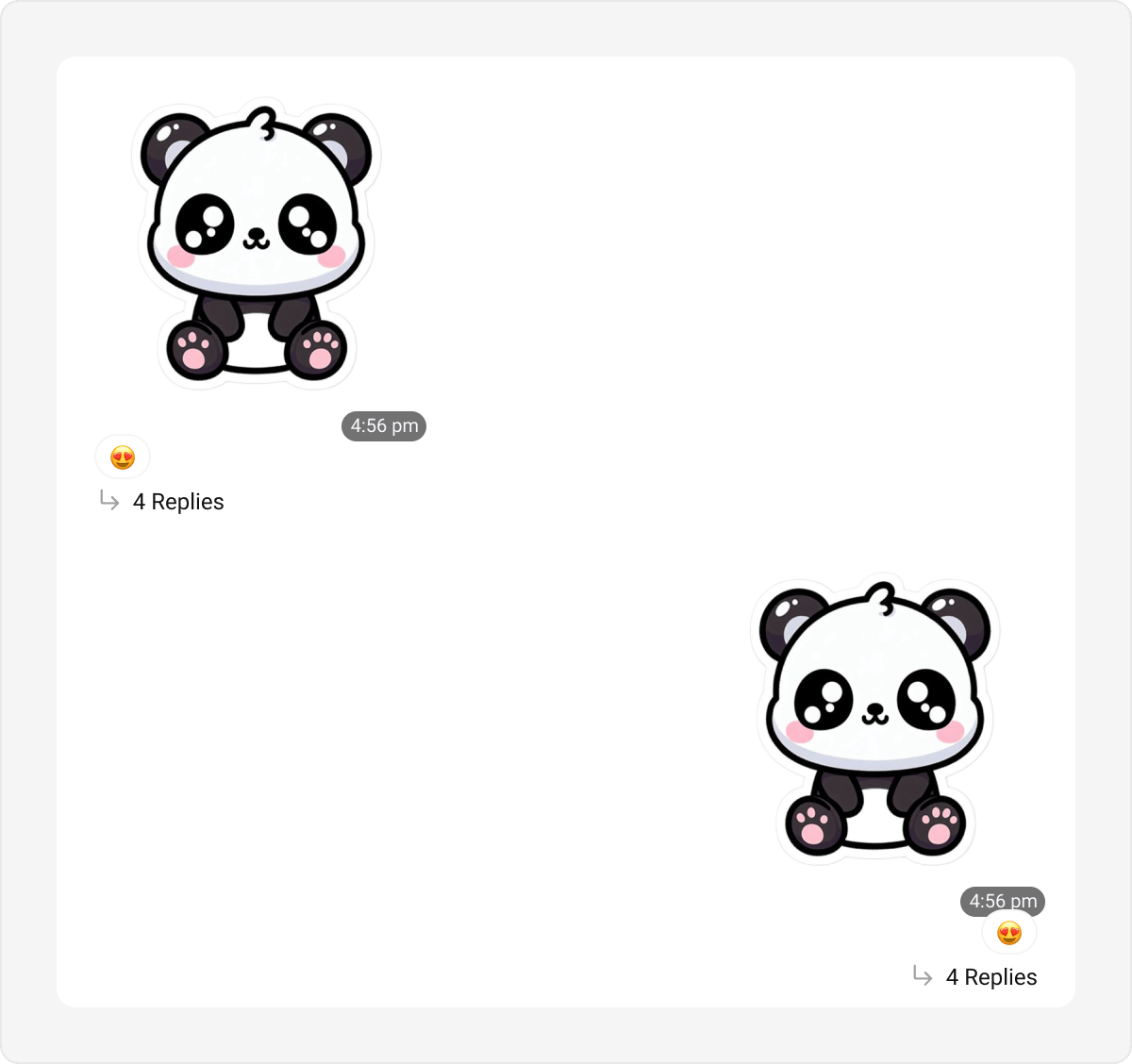
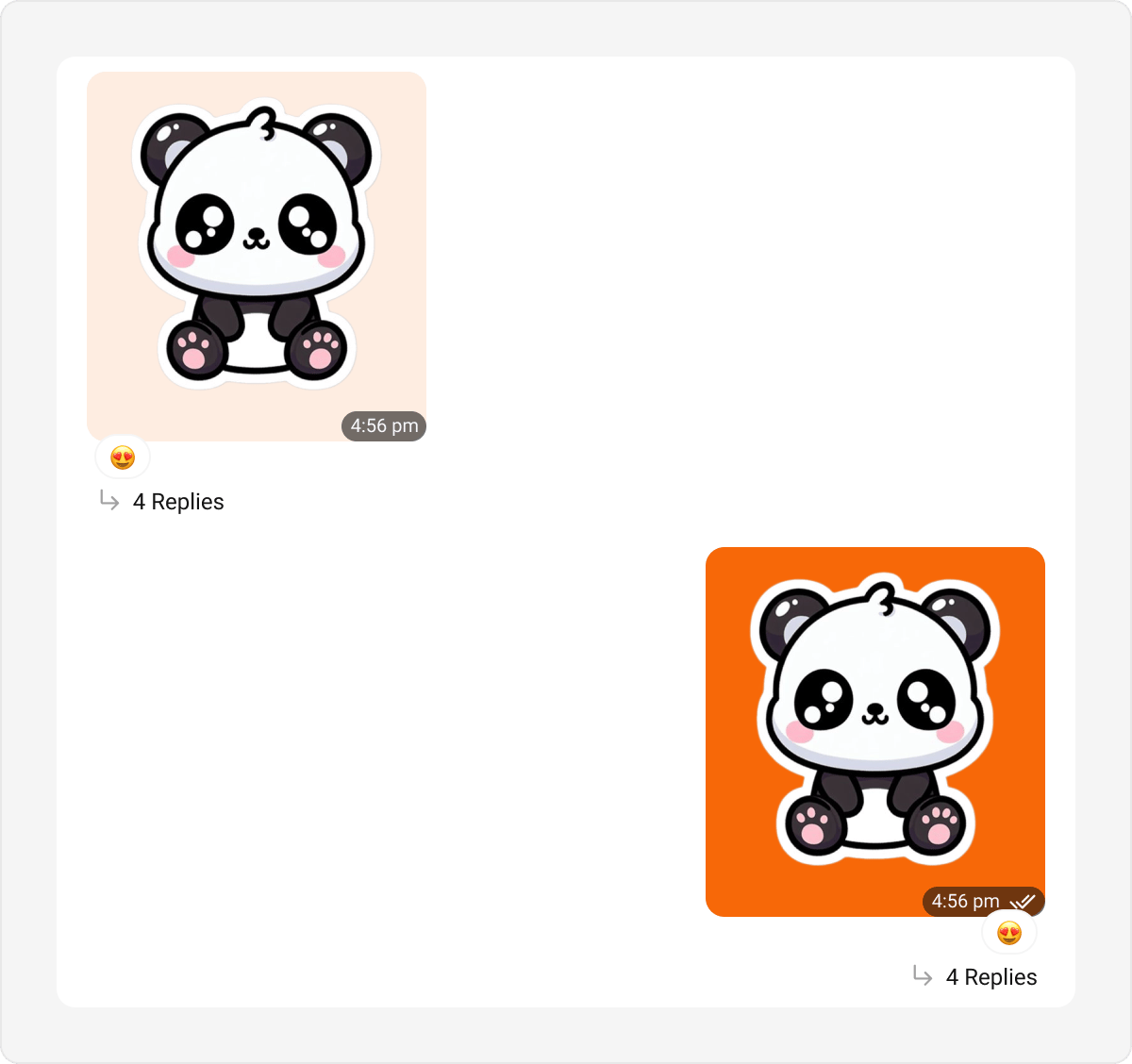
themes.xml
Poll Bubble
Displays polls, options, and live results. Default & Customization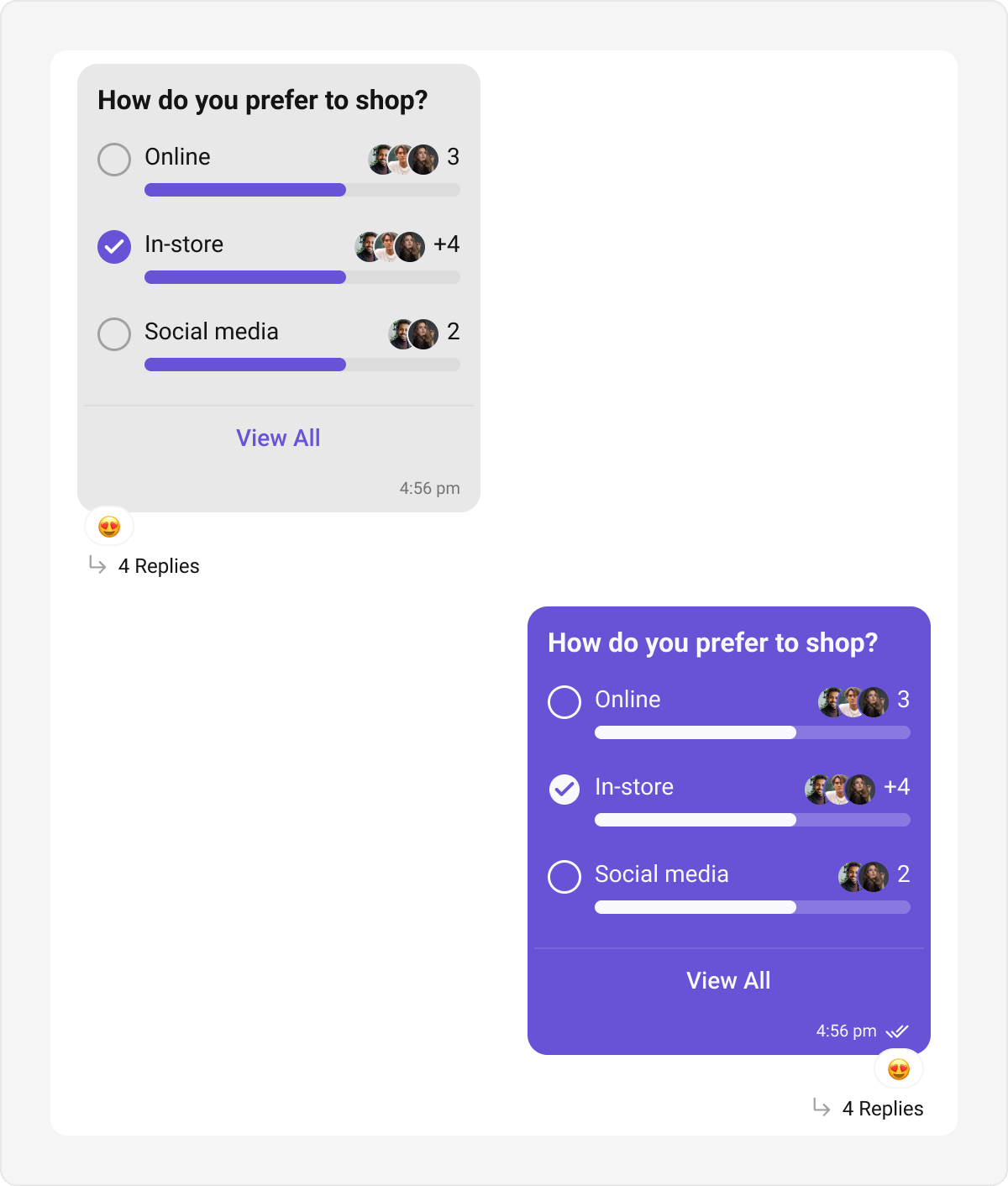
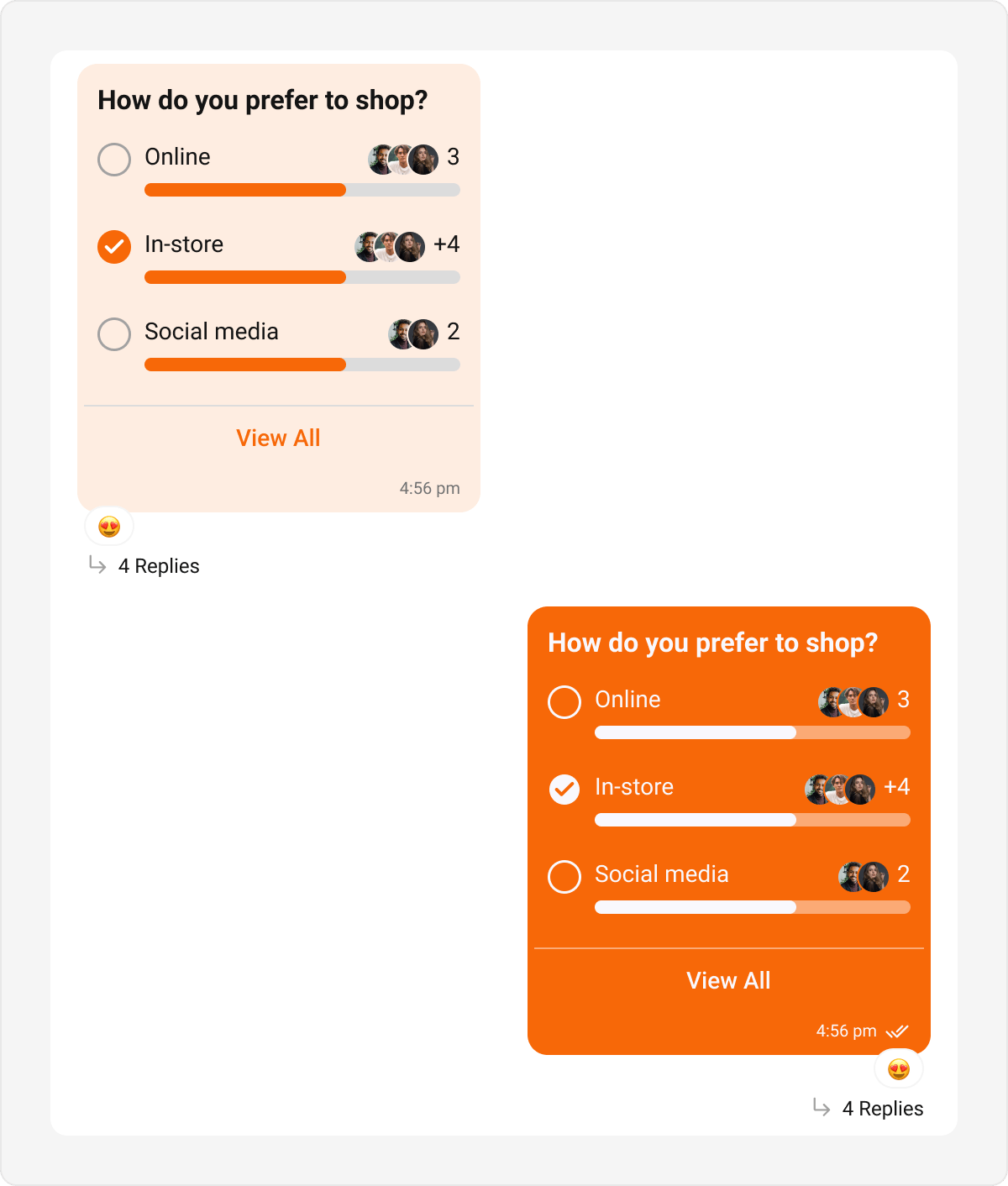
themes.xml
Collaborative Bubble
Displays collaborative content, such as shared documents or tasks. Default & Customization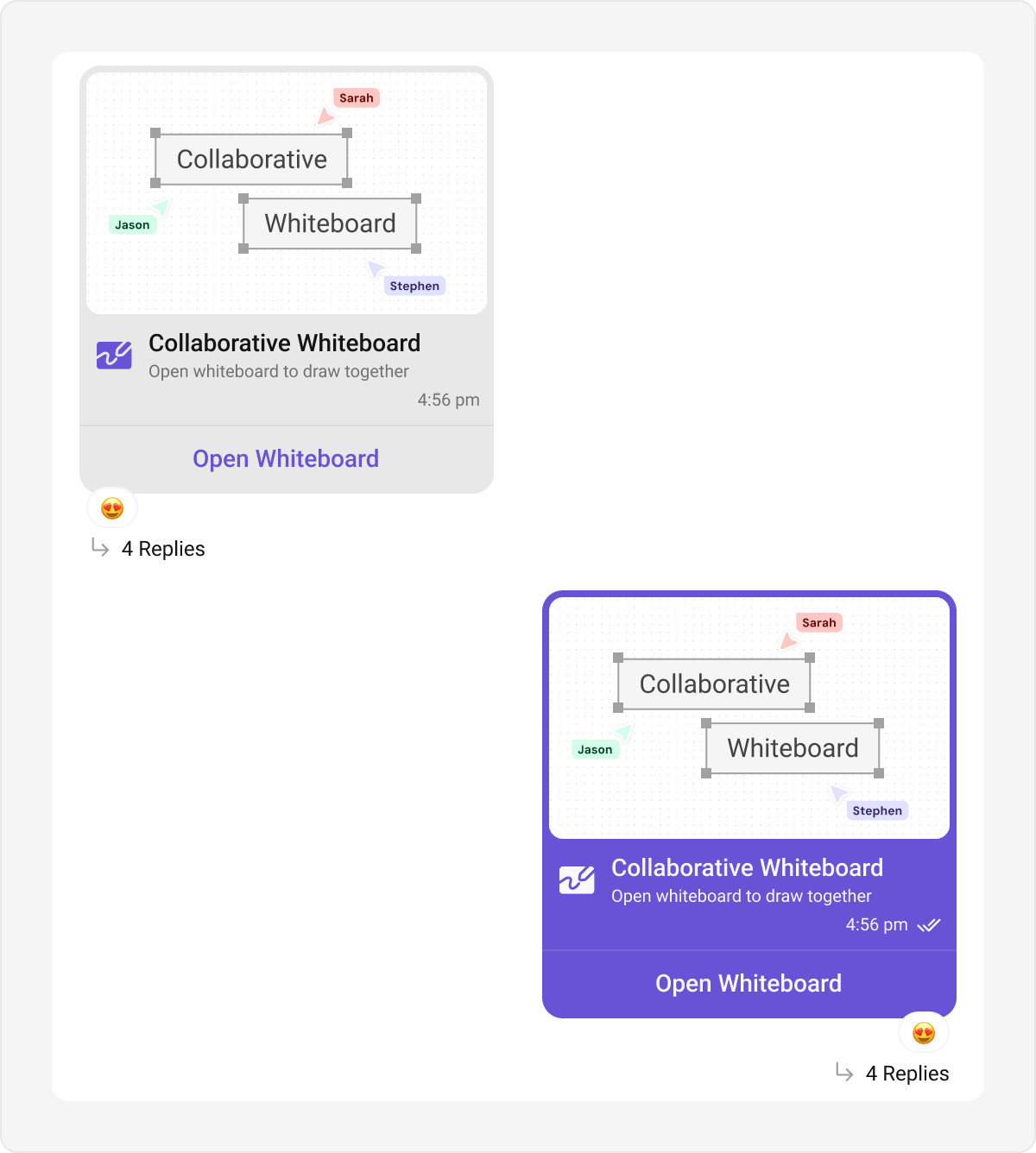
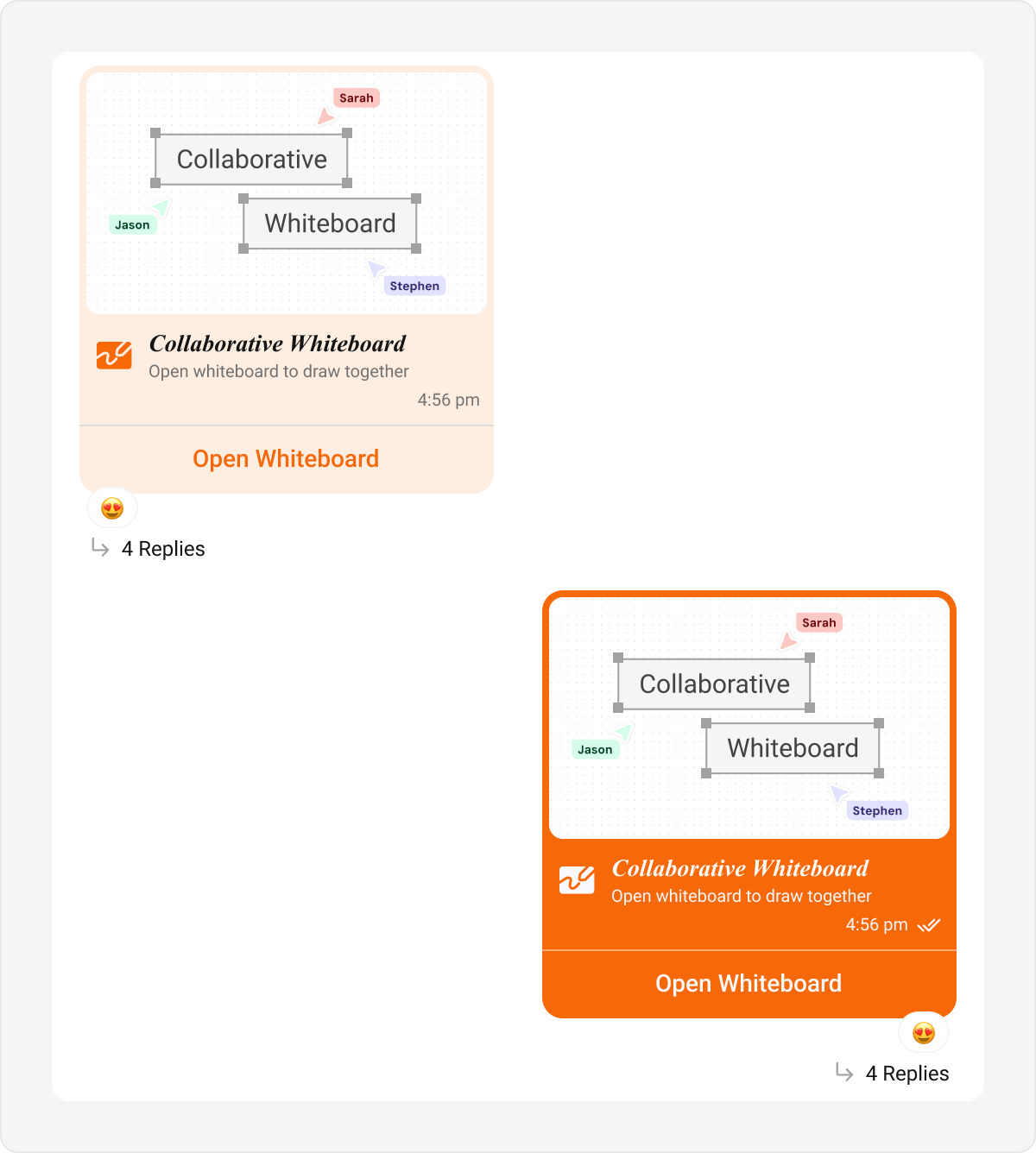
themes.xml
Meet Call Bubble
Displays call-related actions and statuses in the chat interface. Default & Customization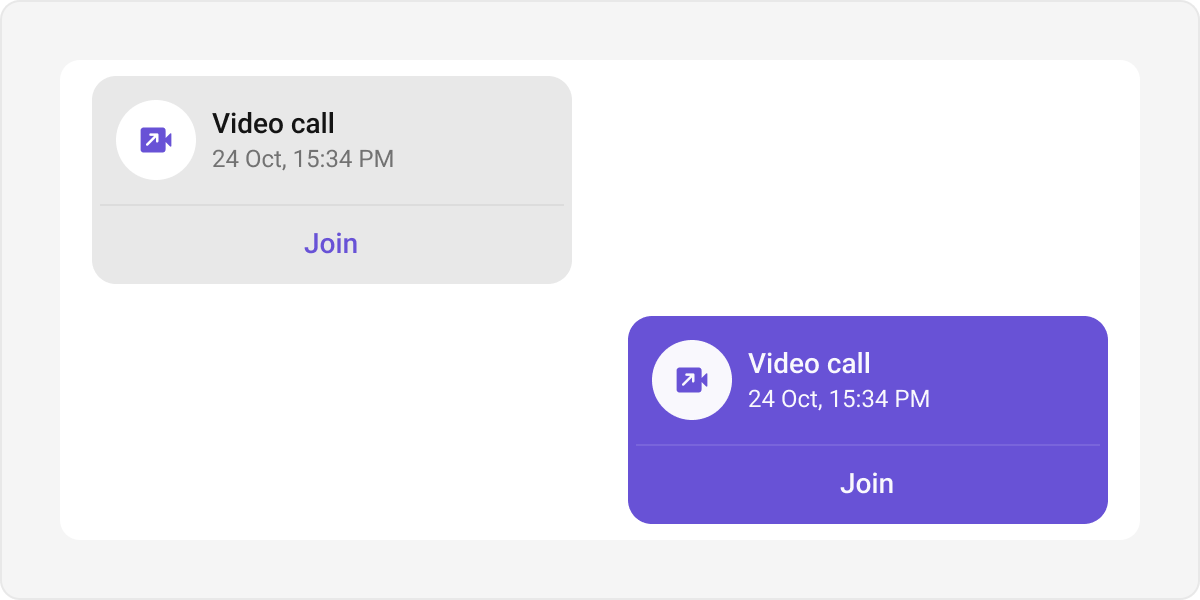
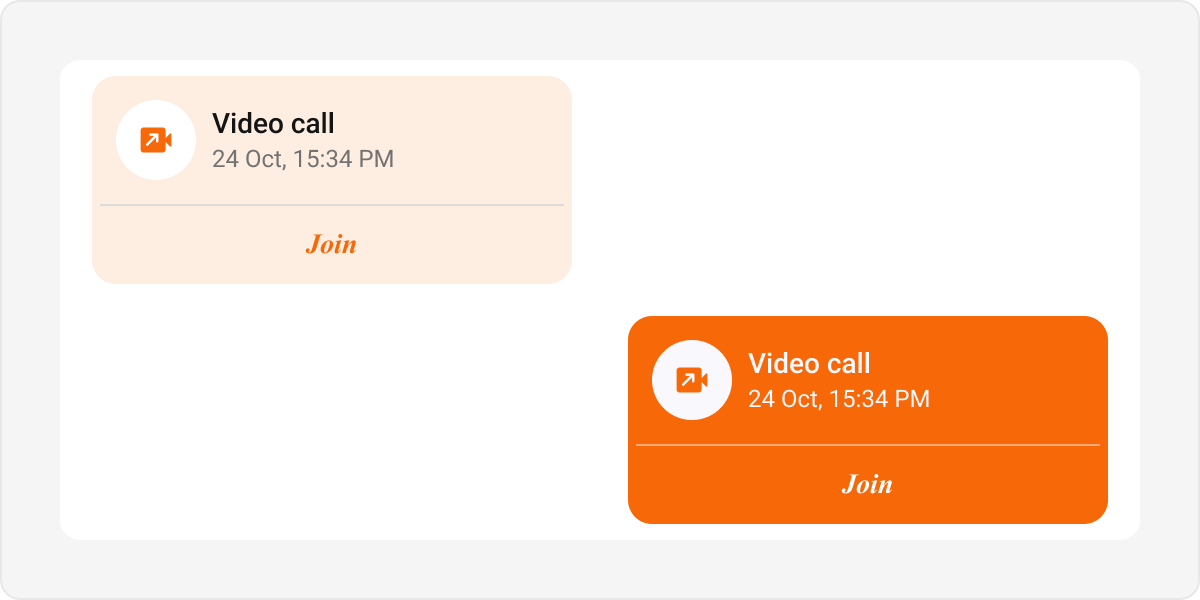
themes.xml
Delete Bubble
Indicates a message that has been removed by the sender. Default & Customization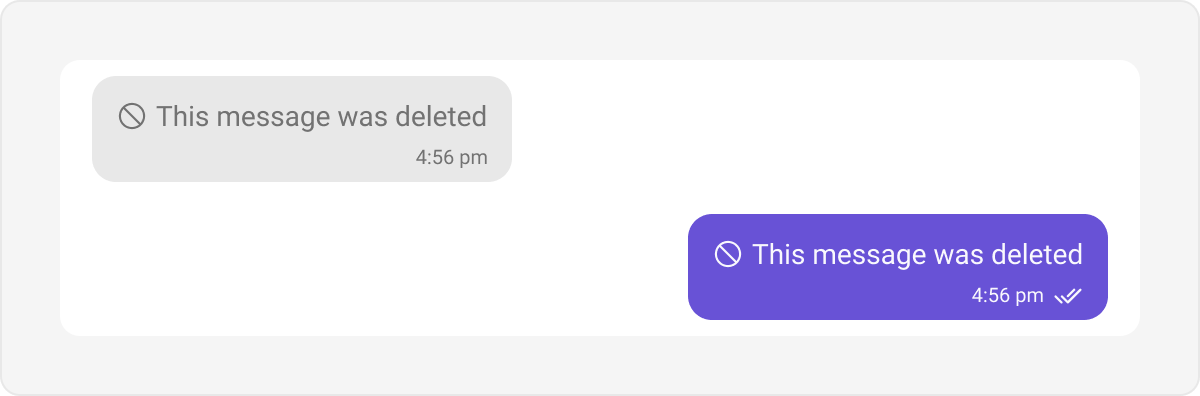
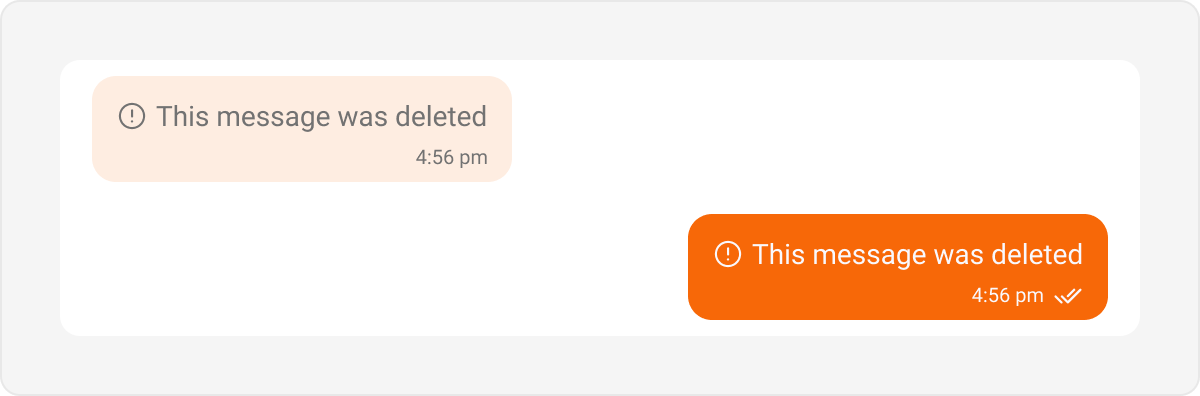
themes.xml
List-Level Bubbles & Special Features
Unlike standard messages, Call Action and Action bubbles are tied to the Message List Style, not the Incoming/Outgoing Hubs. AI Assistants and Quoted Replies have specialized formatting.Call Action Bubble
Displays call actions like missed calls within the message list. Default & Customization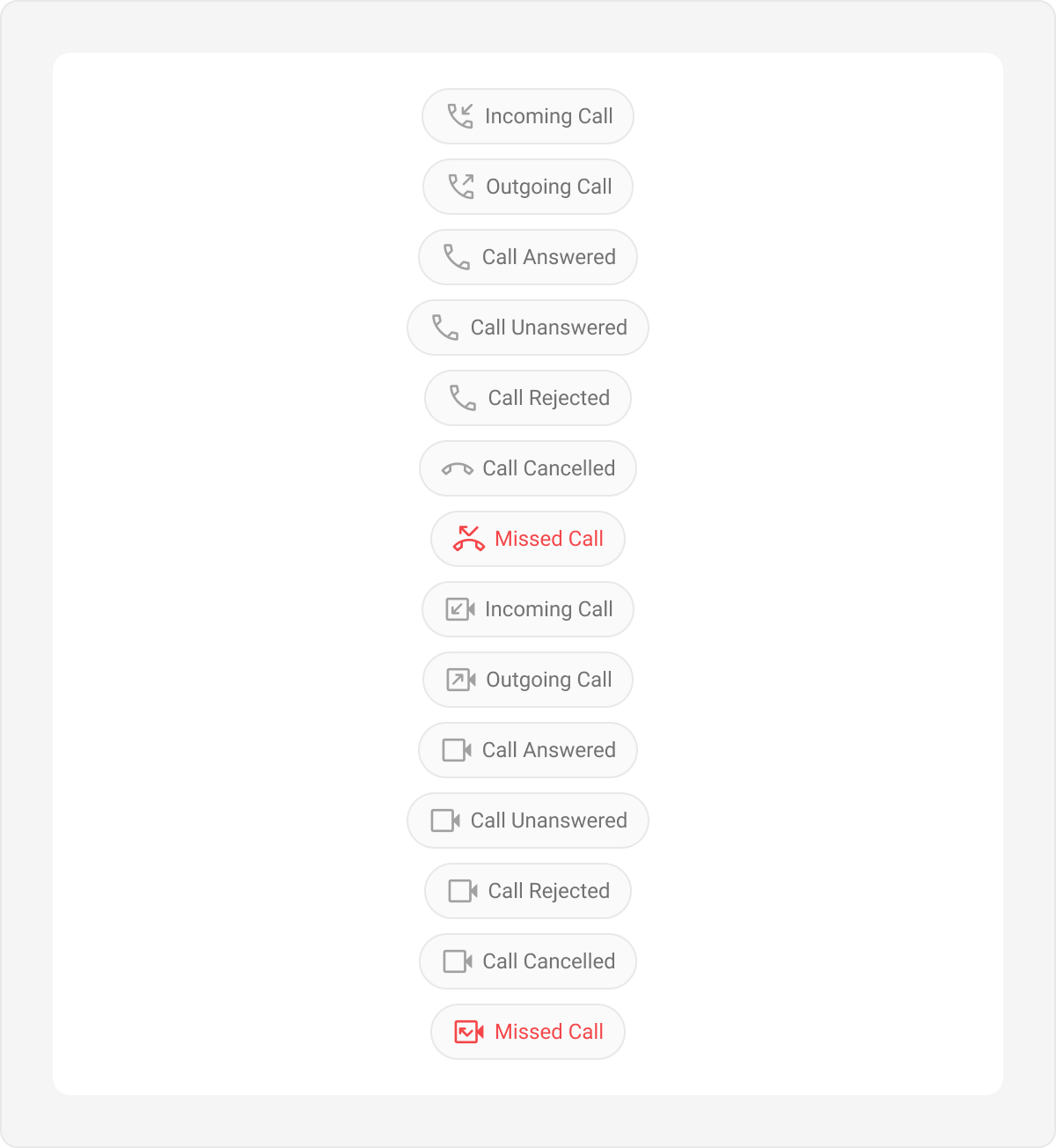
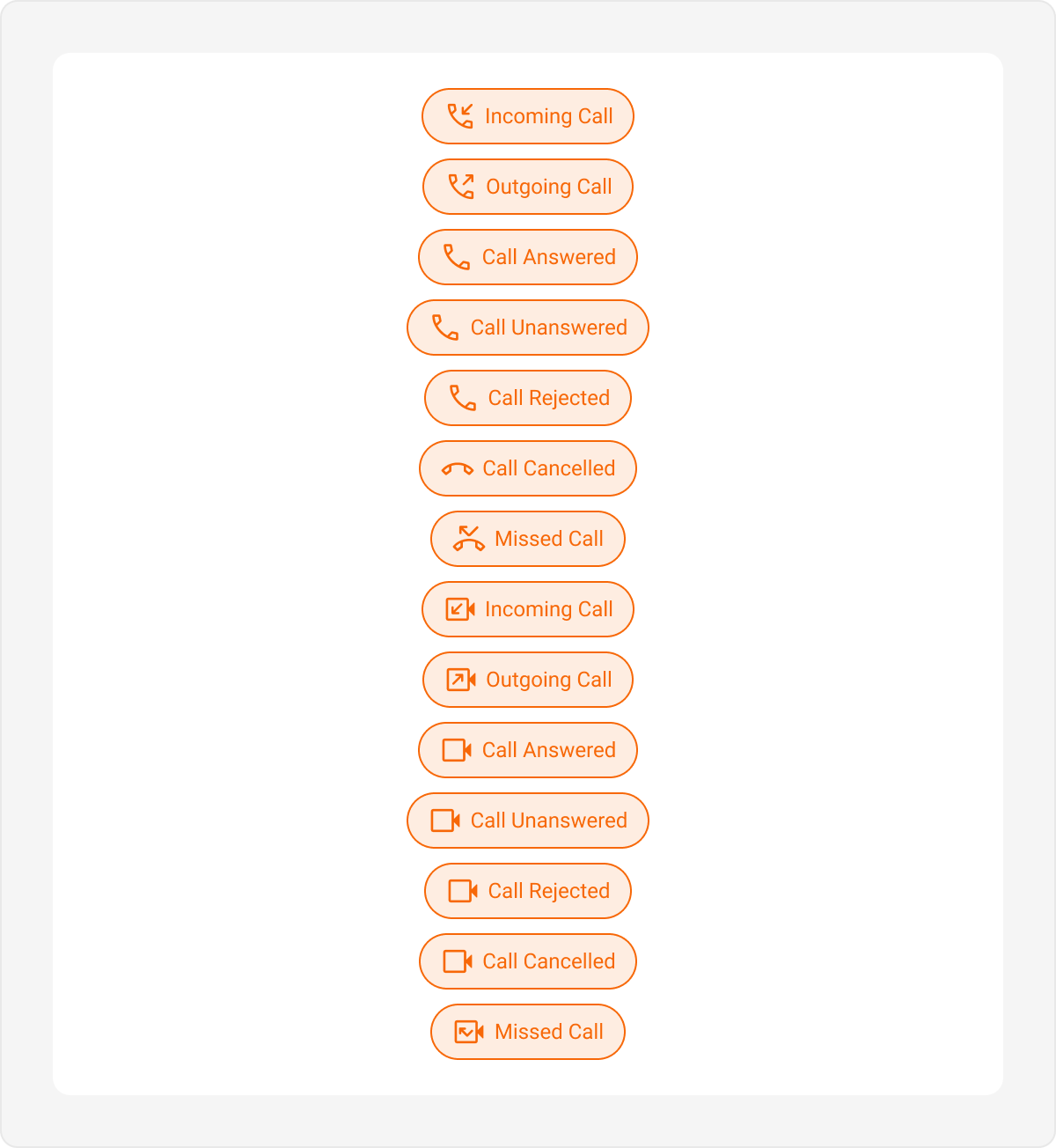
themes.xml
Action Bubble
Displays global group actions (e.g., “User joined the chat”). Default & Customization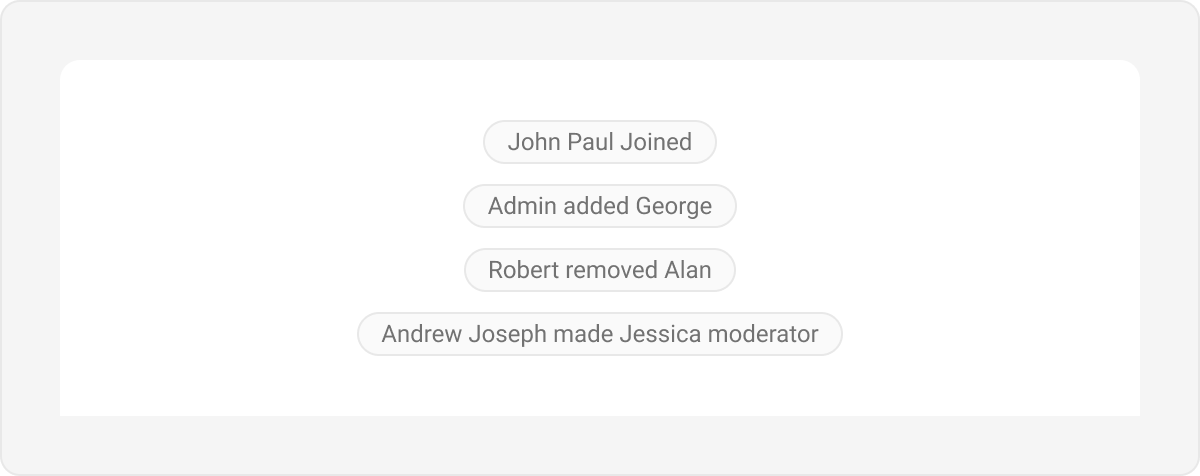
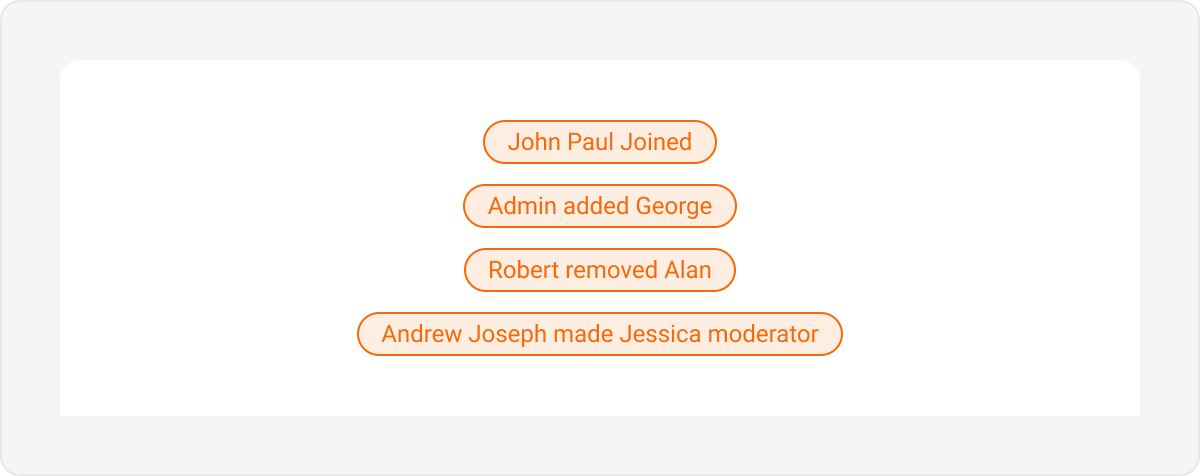
themes.xml
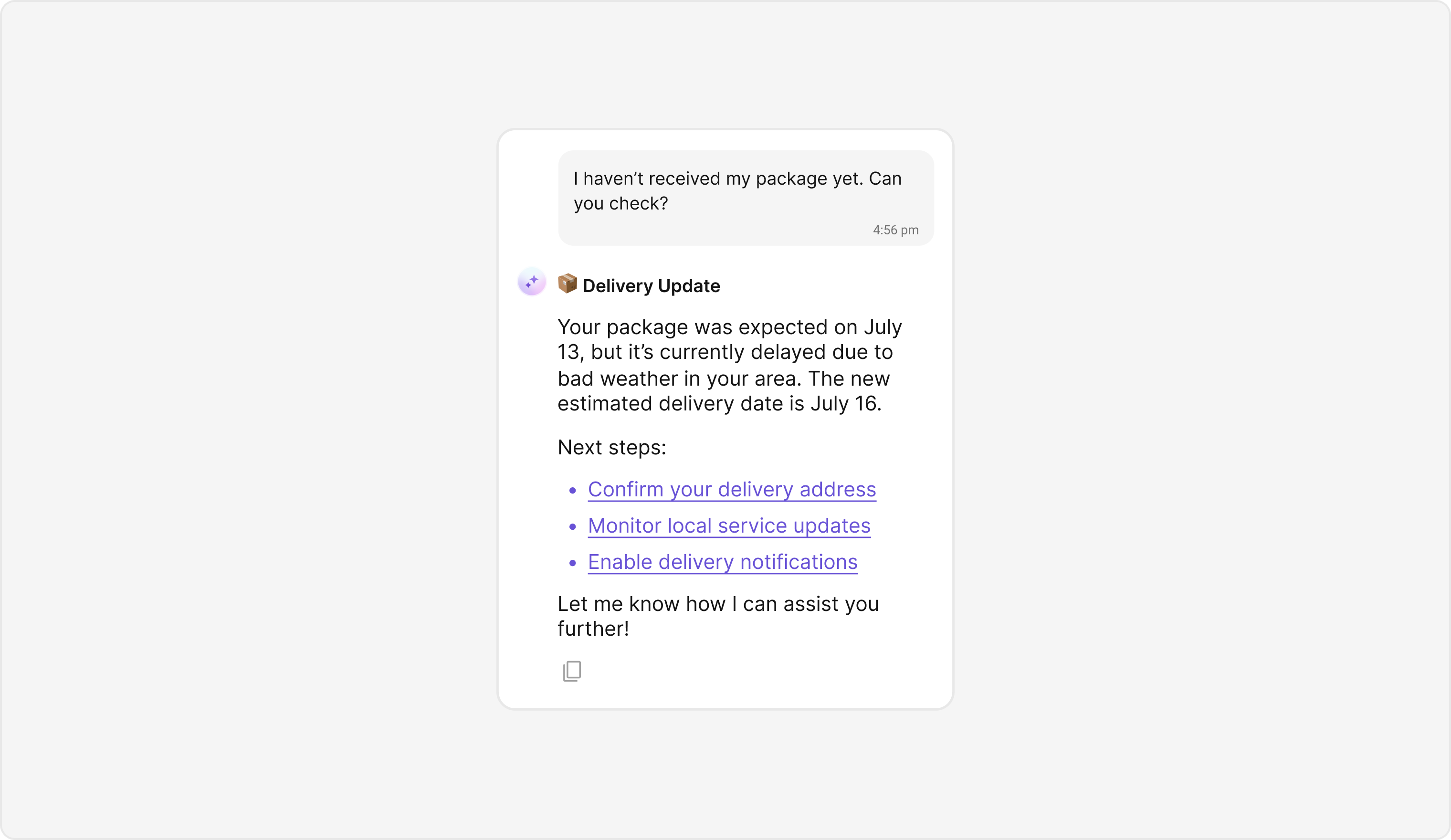
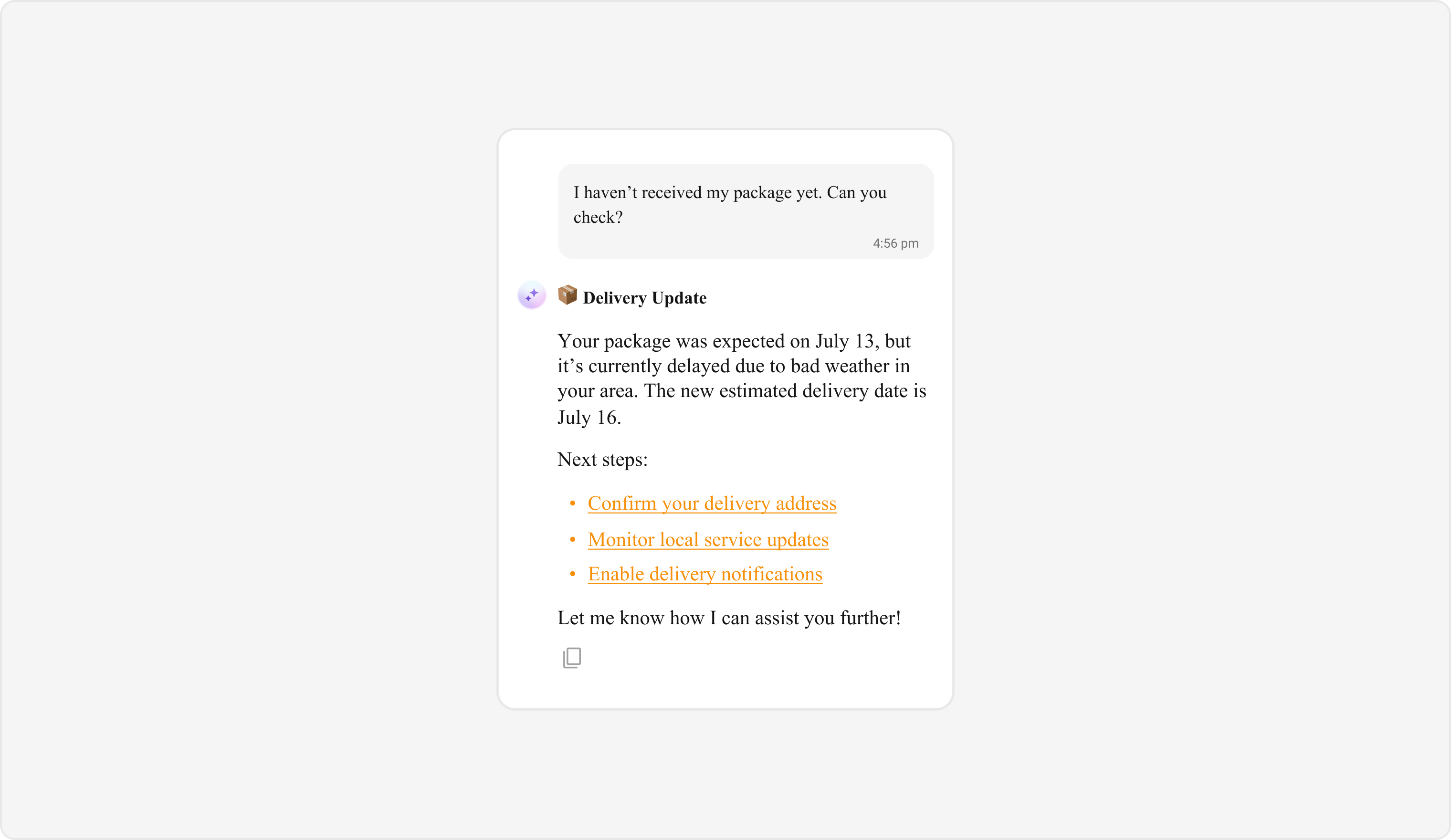
AI Assistant Bubble
Styles interactions generated by the AI assistant. These are anchored to theIncomingMessageBubbleStyle.
Default & Customization
themes.xml
Quoted Reply
Styles the preview block when a user replies to a specific message.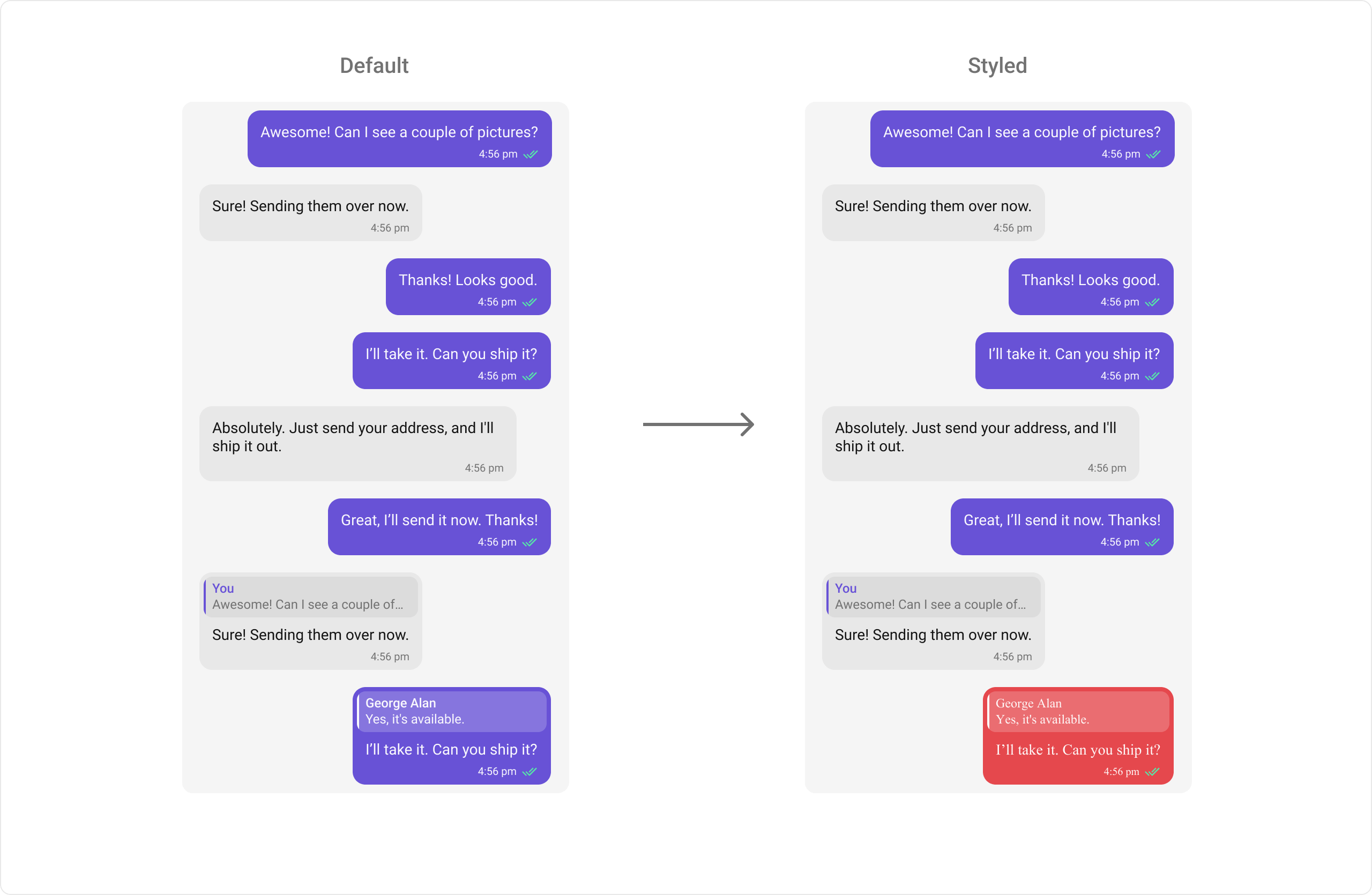
themes.xml